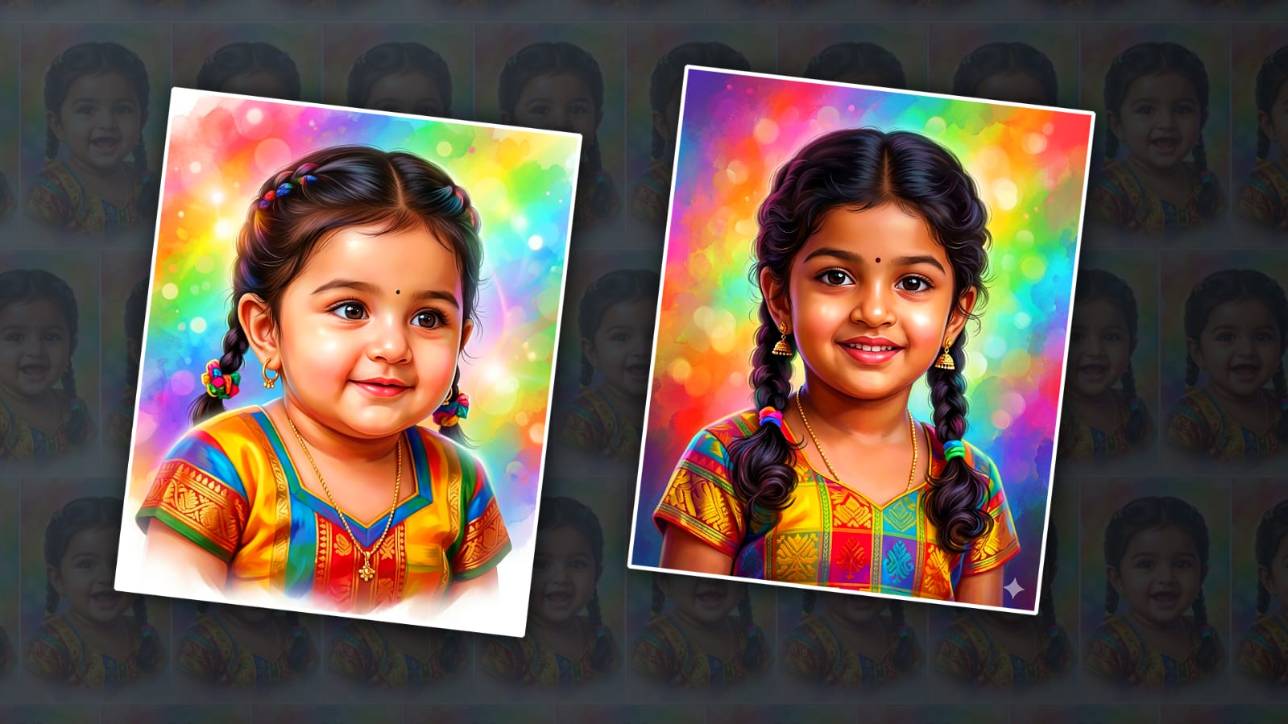
In today’s digital world, turning simple photos into artistic masterpieces has become easier than ever. One of the most creative trends gaining popularity is transforming kids’ photos into digital oil paintings. Parents love this style because it captures the innocence of childhood while adding a timeless, artistic touch. With the help of advanced AI tools like Google Gemini, you don’t need to be a professional designer or artist to achieve stunning results.
This guide will walk you through everything you need to know about creating beautiful digital oil painting edits of kids’ photos using Google Gemini. Whether you’re a beginner or someone who enjoys experimenting with photo editing, this article will help you understand the process naturally and practically.
Understanding Digital Oil Painting Style
Before jumping into the editing process, it’s important to understand what makes an image look like an oil painting. Traditional oil paintings are known for their rich textures, soft blending, expressive brush strokes, and deep colour tones. When we talk about digital oil painting, we are trying to recreate that same effect using software or AI tools.
For kids’ photos, this style works especially well because it enhances facial softness, highlights natural expressions, and creates a dreamy, emotional atmosphere. The goal is not just to apply a filter but to create a piece of art that feels hand-painted.
Why Use Google Gemini for Photo Editing
Google Gemini has emerged as a powerful AI tool capable of understanding images, generating prompts, and assisting in creative workflows. While it may not directly function as a full-fledged photo editor like traditional software, it plays a key role in guiding edits, generating artistic prompts, and refining ideas.
What makes Gemini unique is its ability to understand natural language. You can simply describe the kind of oil painting effect you want, and it can help you generate prompts or instructions that you can use in compatible editing tools or AI image generators.
This makes the entire process easier, especially for beginners who may not be familiar with complex editing software.
Choosing the Right Photo
The first step in creating a digital oil painting is selecting the right photo of the child. Not every image works equally well. A good photo will have clear lighting, a natural expression, and a clean background.
Images with soft lighting tend to produce better oil painting effects because harsh shadows can look unnatural when converted into a painted style. Close-up portraits usually work best, as they allow the AI to focus on facial details and expressions.
It’s also helpful if the child’s face is clearly visible and not heavily covered by accessories or distractions.
Preparing Your Image
Before using Google Gemini, it’s a good idea to do some basic preparation. This can include adjusting brightness, contrast, and sharpness using any simple photo editing app. The purpose of this step is to make sure the image is clean and visually balanced.
Cropping the image to focus more on the subject can also improve the final result. When the child’s face becomes the central element, the oil painting effect looks more refined and professional.
Once your image is ready, you can move on to the creative part using Gemini.
Using Google Gemini to Generate Oil Painting Prompts
Google Gemini works best when you give it clear and descriptive instructions. Instead of vague requests, try to be specific about the style you want. For example, you can ask for a prompt that transforms a child’s portrait into a classical oil painting with soft brush strokes, warm lighting, and a blurred background.
Gemini will then generate a detailed prompt that you can use in AI image tools or editing platforms that support style transformation. The more descriptive your request, the better the output will be.
You can also experiment with different styles,s such as vintage oil painting, modern oil painting, or even royal portrait styles inspired by classic artworks.
Applying the Oil Painting Effect
Once you have your prompt ready, you can use it in an AI image generator or photo editing tool that supports style transformation. Upload your prepared image and apply the generated prompt.
At this stage, the magic happens. The AI will analyse the image and recreate it with textures, brush strokes, and colour tones that resemble an oil painting.
It may take a few tries to get the perfect result. Sometimes the output might look too artificial or overly stylised. In such cases, you can refine your prompt or adjust the intensity of the effect.
Patience is key here. Each small adjustment brings you closer to a more realistic and artistic outcome.
Enhancing the Final Image
After generating the oil painting version, you can further enhance the image using basic editing tools. Adjusting brightness, adding slight sharpening, or improving colour balance can make a big difference.
You might also want to add a soft vignette effect to draw attention toward the child’s face. This subtle touch gives the image a more professional and polished look.
Some people also like to add a canvas texture overlay to make the image feel more like a real painting. This step is optional,l but can enhance the overall presentation.
Common Mistakes to Avoid
While creating digital oil paintings is fun, there are a few common mistakes that can affect the quality of your work. One of the biggest mistakes is using low-resolution images. High-quality photos always produce better results.
Another mistake is overusing effects. Too much texture or extreme brush strokes can make the image look unrealistic. The goal is to maintain a balance between artistic style and natural appearance.
It’s also important not to ignore facial details. Kids’ expressions are the most important part of the image, so make sure they remain clear and well-defined.
Creative Ideas to Try
Once you become comfortable with the process, you can start experimenting with creative ideas. You can create themed portraits such as fairy tale characters, royal paintings, or vintage-style artworks.
You can also try different colours or moods, like warm golden tones for a cosy feeling or cool tones for a calm and dreamy look.
Another interesting idea is to create a series of oil paintings showing different expressions or moments. This can be a beautiful way to preserve childhood memories in an artistic format.
Benefits of Digital Oil Painting for Kids’ Photos
Transforming kids’ photos into oil paintings is more than just a trend. It adds emotional value to your memories. These images can be printed and framed, making them perfect for home decor.
They also make thoughtful gifts for family members. A beautifully edited oil painting of a child can become a cherished keepsake for years to come.
Additionally, the process itself is enjoyable and creative. It allows you to explore art without needing traditional painting skills.
Final Thoughts
Creating kids’ digital oil painting photo edits using Google Gemini is a rewarding and creative experience. With the right approach, even a simple photo can be transformed into a stunning piece of art.
Prompt
Use the uploaded image as the exact face reference (STRICT FACE PRESERVATION maintain 100% identical facial features, skin tone, eyes, nose, lips, hairstyle, and expression. Do not alter identity).
Create a highly detailed, vibrant digital painting portrait of a cute South Indian baby girl in a soft, dreamy artistic style.
Hair: She should have neatly parted hair styled into two braids with colorful hair ties.
Accessories: Wearing small traditional gold earrings, a tiny bindi on the forehead, and a delicate gold chain.
Outfit: Bright, colorful traditional dress with rich patterns (yellow, red, blue, green tones), soft fabric texture.
Expression: Same as uploaded photo
Lighting: Soft glowing light with smooth skin highlights, painterly shading.
Background: Abstract watercolor-style blurred background with vibrant rainbow colors and smooth bokeh effect.
Style: Ultra-detailed digital painting, soft brush strokes, smooth blending, high color saturation, fantasy-like glow.
Focus: Sharp face details, soft edges around the body, vignette fade.
Aspect ratio: 4:5 or portrait.