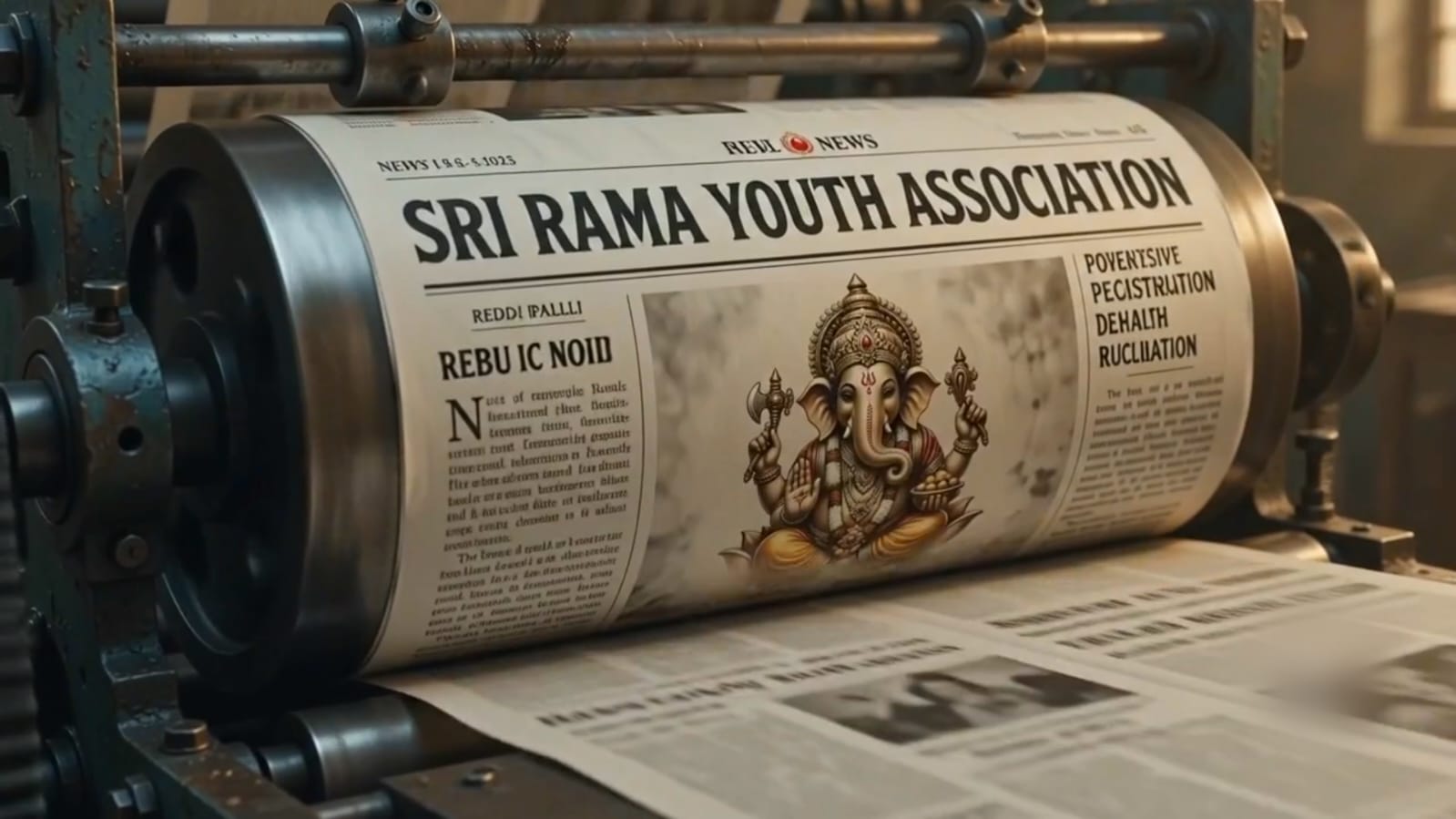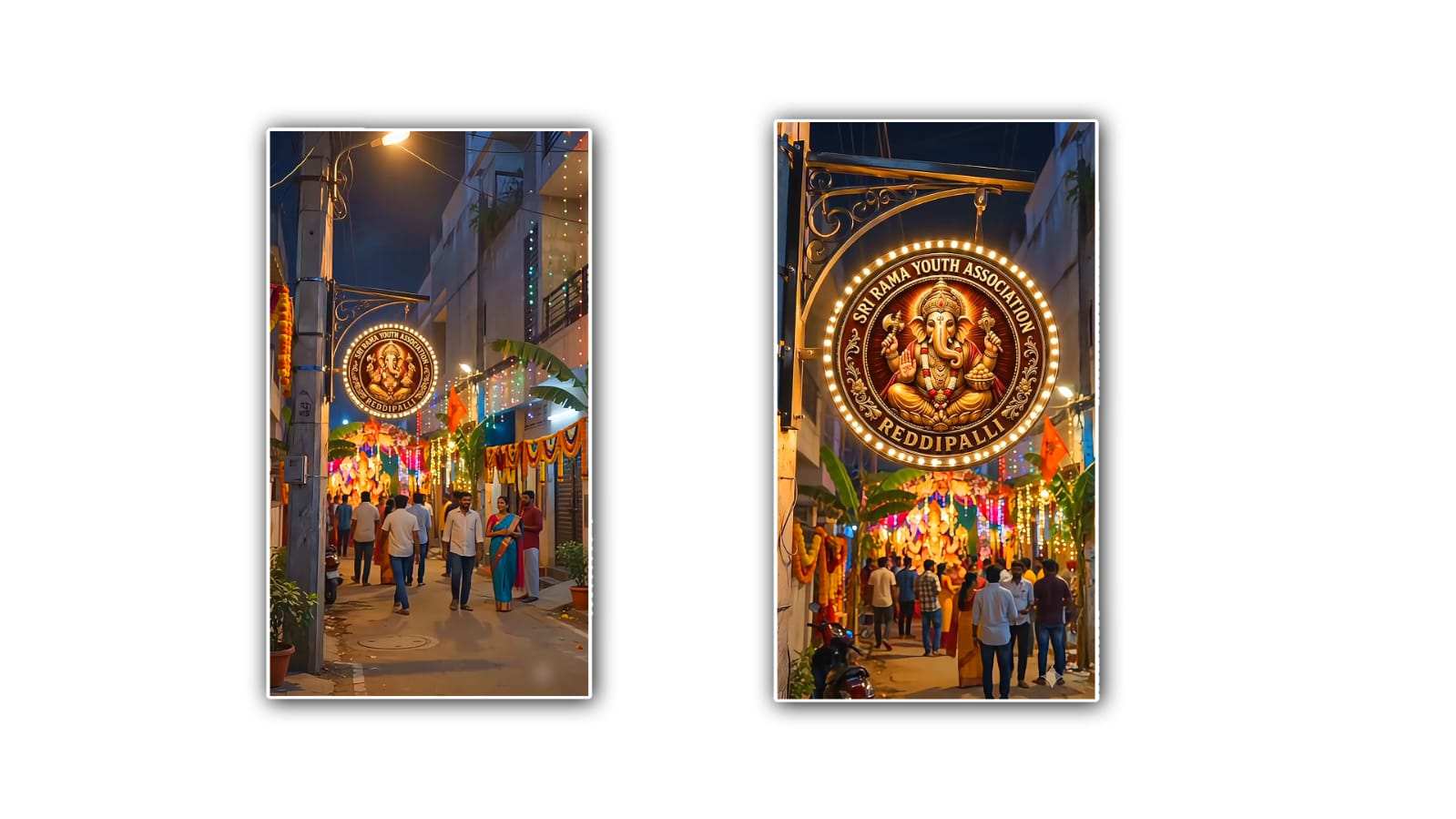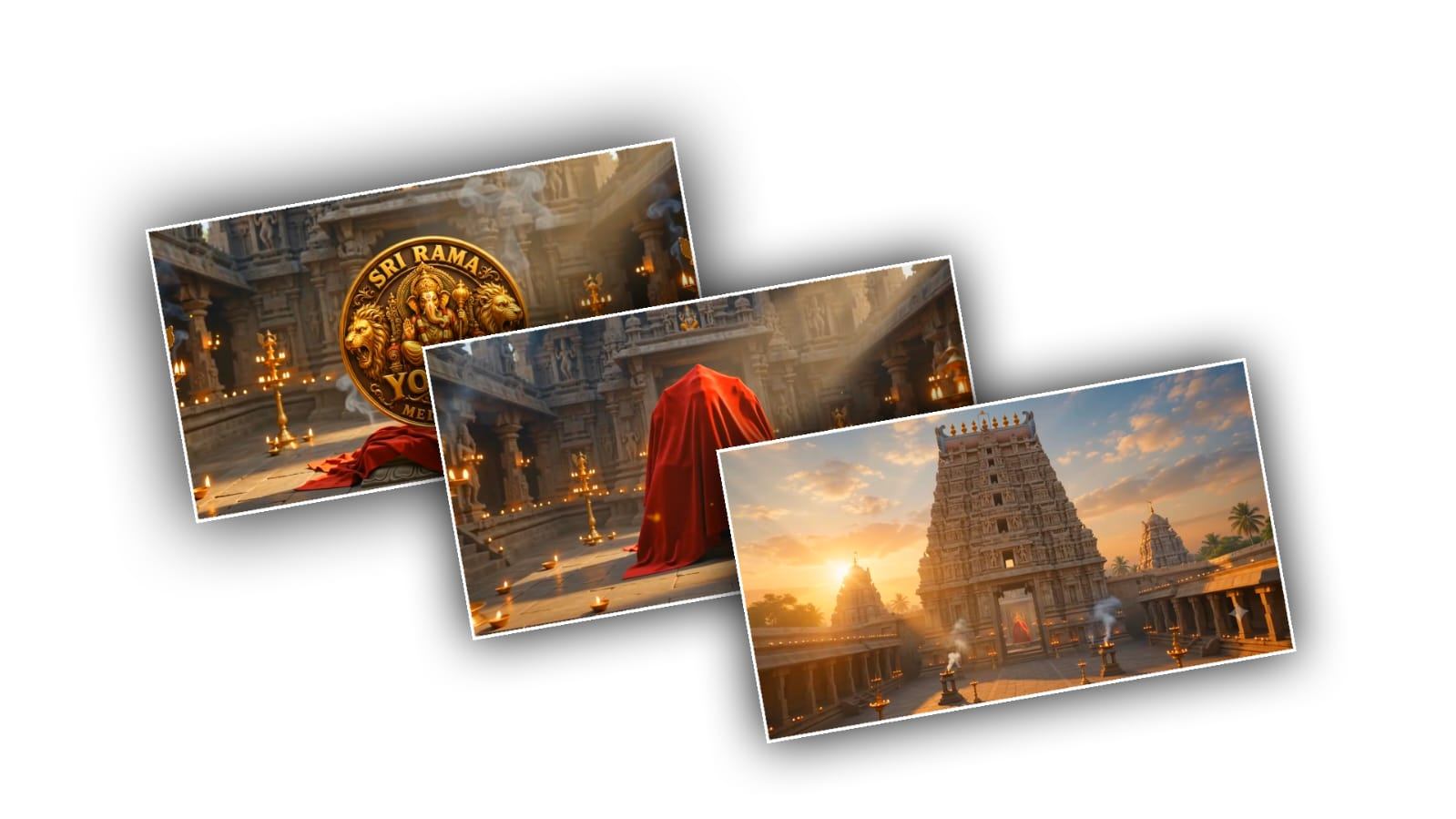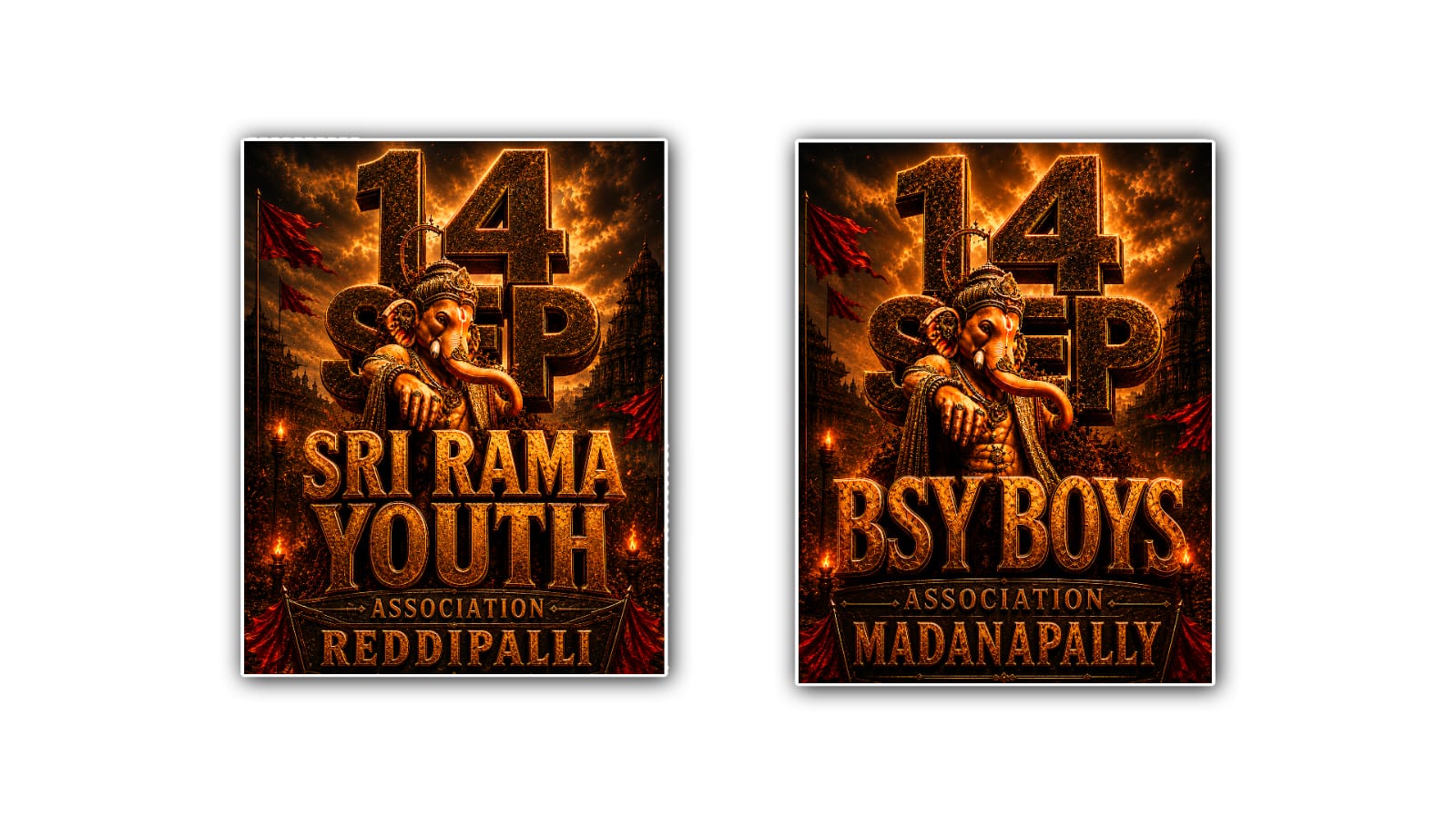
If you are looking for a simple way to create a cinematic golden logo without using complicated editing software, Google Gemini can be a useful option. With the right idea, a good logo image, and a clear prompt, you can turn a normal logo into a premium-looking golden design with cinematic lighting, reflections, shadows, and a professional background.
The best thing about using Google Gemini for this type of editing is that you do not need to be an expert in graphic design. You can explain the look you want in simple language, upload your logo, and ask Gemini to transform it while keeping the original logo identity. The final result can be useful for YouTube videos, Instagram posts, business branding, intro videos, posters, thumbnails, and other creative projects.
First, you need a good-quality logo. It is better to use a PNG image with a transparent background because it gives more freedom while editing. If your logo has a white or colourful background, Gemini can still work with it, but sometimes the result may not look as clean. A high-resolution logo will also give better results compared with a very small or blurry image.
Open Google Gemini and upload your logo image. After uploading, do not simply write “make my logo golden.” This may produce a basic gold colour without the cinematic effect. Instead, explain the complete visual style. Tell Gemini that you want a premium cinematic golden logo, realistic metallic material, dramatic lighting, deep shadows, reflections, and a luxury presentation.
For example, you can use a prompt like this:
“Transform this logo into a premium cinematic golden logo. Keep the original logo shape, letters, symbols and proportions the same. Convert the logo into realistic polished gold metal with detailed metallic reflections. Add warm golden rim lighting, dramatic shadows, subtle glowing highlights and a dark cinematic background. Make the logo look luxurious, powerful and professional, with realistic 3D depth and studio-quality lighting. Do not change the original design or text.”
This type of prompt gives Gemini more information about the expected result. The important point is to clearly tell it not to change the original logo. AI image editing can sometimes modify letters, symbols or small details, especially when the logo contains text. Adding instructions such as “keep the original text and shape unchanged” can help.
The next important part is choosing the right background. A golden logo usually looks much better on a dark background because the gold colour gets more attention. You can ask Gemini for a black cinematic background, dark brown background, dark blue background or a subtle smoky background. For a luxury style, black and dark charcoal usually work very well.
You can also add a studio-lighting effect. Ask Gemini to create a soft light from one side of the logo and a warm rim light around the edges. This makes the gold material look more realistic. Metallic surfaces need highlights and reflections to show their texture. Without proper lighting, a golden logo can simply look like a flat yellow image.
Another useful effect is 3D depth. If your logo is suitable for a three-dimensional style, ask Gemini to give it realistic extrusion and bevelled edges. You can write, “Add subtle 3D extrusion, realistic bevelled edges and polished gold surfaces.” However, you should not ask for extreme 3D effects if your original logo is very simple. Sometimes a clean flat metallic design looks more professional.
For a cinematic movie-style appearance, you can also request atmospheric effects. For example, add a small amount of golden dust, soft particles, light rays, smoke or a subtle glow behind the logo. These effects can make the image feel more dramatic. But it is better to keep them subtle. Too many particles, lens flares or glowing effects can make the logo look less professional.
If the first result is not perfect, do not start again immediately. You can give Gemini another instruction based on the problem. For example, if the gold looks too yellow, say, “Make the gold more realistic and metallic, with a slightly darker champagne-gold tone.” If the background is too bright, say, “Make the background darker and more cinematic so the logo stands out clearly.”
If the logo text has changed, tell Gemini to correct it. You can say, “Restore the exact original logo text and letter shapes from the uploaded image. Do not redesign or replace any letters.” This can help, although AI image editing may still have difficulty with highly detailed text.
You can also experiment with different golden styles. A polished gold style gives a bright luxury appearance. Brushed gold gives a more elegant and premium business feeling. Old gold gives a vintage look, while rose gold gives a modern and fashionable appearance. You can tell Gemini which material you prefer.
For YouTube or social media, the image size and composition are also important. If you want to use the logo as a video intro, ask for a wide cinematic composition with the logo placed in the centre. For an Instagram post, a square composition may be better. For a YouTube thumbnail, you can request a 16:9 composition with enough space around the logo.
One useful trick is to create the logo image first and then ask Gemini for variations. You can try a black luxury background, a dark cinematic studio background, a golden smoke background and a dramatic spotlight background. Comparing a few versions can help you choose the one that looks most professional.
The quality of your final result depends heavily on the prompt. Instead of using only words like “beautiful,” “professional,” or “cinematic,” describe the actual visual elements. Mention realistic gold material, metallic reflections, dramatic lighting, deep shadows, 3D depth, dark background, soft rim light and premium studio quality. Clear instructions generally give the AI a better idea about what you want.
It is also important to remember that Gemini is an AI tool, so the result may not always be perfect in the first attempt. Small logo details, fonts and complex symbols can sometimes change during editing. If your logo is being used for a professional business identity, always compare the generated image with the original logo before publishing it.
Once you get a good golden logo, you can use it in many ways. It can be used as a YouTube channel logo, video intro, business presentation, social media profile image, poster, wedding invitation, gaming logo, product branding or promotional design. You can also use the generated image as a starting point and add final touches in Canva, Photoshop, CapCut or another editing application.
The main secret is not using a very complicated prompt. It is giving Gemini clear instructions about what must stay unchanged and what needs to be transformed. Keep the original logo identity protected, and focus the editing instructions on the material, lighting, background and cinematic atmosphere.
With a good logo and a well-written prompt, you can create a cinematic golden logo that looks much more premium than a simple colour change. Try different lighting and background combinations until you find the style that matches your brand. The more specific your instructions are, the easier it becomes to get a result close to the design you have in your mind.
LOGO PROMPT
Use the uploaded image as the exact visual reference and recreate it as closely as possible. Keep the same: Lord Ganesha appearance, pose, size and position Giant 3D "14 SEP" style and placement Giant 3D Youth Name typography style and placement Dark bronze/golden metallic texture Temple background Red flags Fire, smoke, sparks and glowing embers Lighting, shadows and cinematic atmosphere Overall composition, proportions and poster layout. 3D depth, bevels, engravings and metallic reflections

Text:

"[DATE]"

"SRI RAMA YOUTH"

"ASSOCIATION"

"REDDIPALLI"

Place the text in exactly the same positions and hierarchy as the uploaded image. The large middle text should be the SRI RAMA YOUTH. The smaller text directly below the large Youth Name should read "ASSOCIATION". The bottom text should be the REDDIPALLY.

Create an ultra-realistic, highly detailed, premium cinematic 3D Ganesh Youth Association poster with the same dramatic golden-orange color palette and epic devotional atmosphere as the uploaded image. Do not change the visual design or composition. Keep the uploaded image's overall appearance as close as possible while using the new text provided above. No extra text, no watermark, no additional logos. Vertical 4:5 composition, ultra-detailed, photorealistic 3D rendering, cinematic lighting, 8K quality.