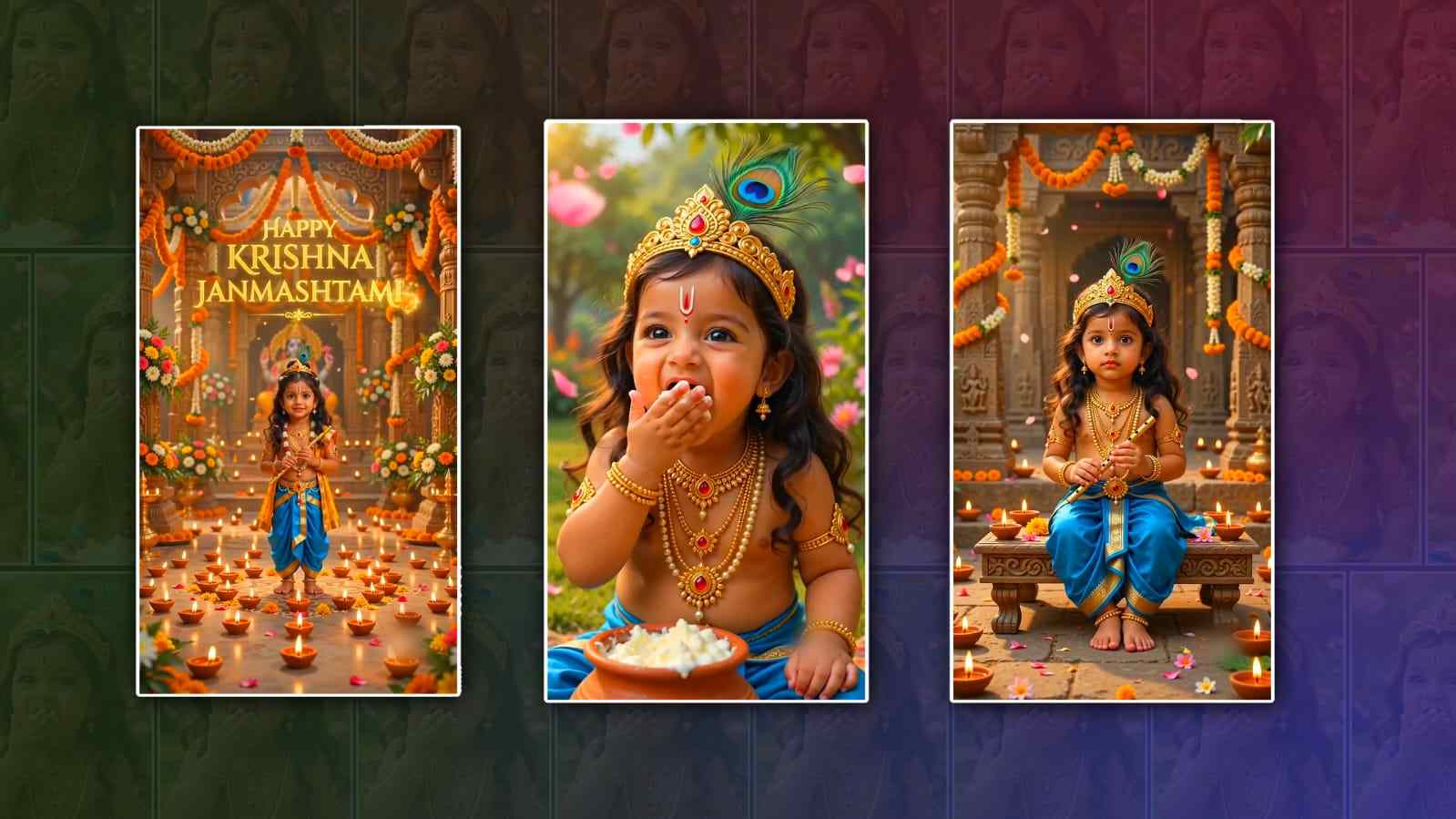
Krishna Janmashtami is a beautiful festival that celebrates the birth of Lord Krishna, and many families love creating special videos for the occasion using photos of their children. If you have a cute baby photo and want to turn it into a creative Janmashtami-themed video, Google Gemini can be a useful starting point. With the help of AI, you can create ideas, prompts, captions, scenes, and editing instructions that make the final video look festive and personal. You do not need to be a professional video editor to create something attractive. A clear baby photo, a good idea, and a simple editing app can be enough to make a memorable Janmashtami video.
The first thing you should do is choose a good photo of your baby. Select a clear, high-quality image where the baby’s face is visible. A photo with good lighting usually gives better results than a dark or blurry picture. You can choose a photo in traditional clothes, a colourful dress, or even an ordinary baby picture and give it a Krishna-inspired theme during editing. Before uploading any photo to an AI service, make sure you are comfortable sharing that image and avoid including unnecessary personal information in the picture.
Open Google Gemini and describe what you want to create in simple language. Instead of asking for something very general such as “make a Krishna video,” give Gemini more details about the mood, colours, background, and style you want. For example, you can explain that you want a cute Janmashtami video featuring your baby’s photo, a Krishna-inspired background, peacock feathers, flowers, diyas, a flute, and a festive atmosphere. You can also mention whether you want the result to look traditional, cute, cinematic, colourful, or devotional.
A useful prompt could describe the baby as the main focus and ask for a beautiful Janmashtami setting around the photo. You might say that you want a soft blue and golden background, decorated with flowers and peacock feathers, with a small Krishna flute and traditional festive elements. If you want a more playful appearance, you can ask for a cute Bal Krishna-inspired theme while keeping the baby’s facial appearance natural. The more clearly you explain your desired result, the easier it is to get an output close to your idea.
Once you have your visual concept, think about the video structure. A short video of around 15 to 30 seconds is often enough for social media status updates, Instagram Reels, or family sharing. You can divide the video into several small moments. Start with a simple opening containing “Happy Janmashtami” or “Shri Krishna Janmashtami.” Then show the baby’s photo with festive decorations. After that, add a few transitions, Krishna-themed elements, and a final greeting. Keeping the video short can make it more attractive because viewers can watch the entire clip without losing interest.
Google Gemini can also help you create suitable text for the video. Instead of using long sentences, ask for short Janmashtami greetings that fit naturally on screen. For example, you could use a simple message such as “Little Kanha, spreading love and happiness,” followed by “Happy Janmashtami.” You can also ask Gemini for captions in Hindi, Telugu, English, or a combination of languages depending on your audience. Short text usually looks better in a video because it does not cover too much of the baby’s photo.
If Gemini provides an image or creative concept rather than a complete finished video, you can take that material into a video editing application. Popular editing apps allow you to combine your original baby photo with backgrounds, music, text, stickers, animations, and transitions. You can create a timeline and place the baby’s photo at the centre while adding the Janmashtami decorations around it. A slow zoom-in effect can make a still photo feel more dynamic. You can also use a gentle zoom-out near the end before displaying the final greeting.
Choosing the right colours can make a major difference. Blue, yellow, gold, green, and soft orange work especially well for a Krishna-themed design. Peacock feathers can add a recognisable Krishna-inspired touch, while flowers and diyas can create a traditional festive atmosphere. Try not to add too many effects at once. If the background is already colourful, keep the text simple and make sure the baby’s face remains the most noticeable part of the video.
Music is another important part of a Janmashtami video. You can select an appropriate devotional or festive track from the music library of the editing platform you are using, making sure you have the necessary rights to use it. A soft flute-based instrumental can create a peaceful feeling, while a lively devotional song can make the video more energetic. Keep the music volume balanced so that it supports the visuals rather than overpowering them.
You can also use Gemini to improve your editing idea. If your first concept feels too simple, ask Gemini for additional scene suggestions. For example, you can request ideas for a festive opening, a cute baby-focused middle section, and a devotional ending. You can ask for transition suggestions that match the mood rather than using random effects. This makes the video feel more professionally planned even if you are editing it yourself.
When placing the baby’s photo, avoid excessive filters that change the baby’s face. The purpose of the video is to celebrate the child and the festival, so the image should remain recognisable and natural. If an AI-generated result changes the baby’s facial features, clothing, or appearance in a way you do not like, use the original photo in your video editor and use AI mainly for creative ideas, backgrounds, text, and design inspiration.
Before exporting the final video, watch it from beginning to end. Check whether the text appears for enough time, whether the baby’s face is clearly visible, and whether the transitions are smooth. Make sure there are no spelling mistakes in “Janmashtami,” “Krishna,” or the greeting you choose. Also check the music volume and video dimensions. For a social media status or Reel, a vertical format is usually a practical choice.
Finally, export the video in a good-quality format and save a copy for yourself. You can share it with family and friends or post it on your preferred social platform. A simple baby photo can become a lovely Janmashtami memory when it is combined with thoughtful colours, festive decorations, suitable music, and a meaningful greeting. Google Gemini can help with the creative process by turning your basic idea into detailed prompts, visual concepts, captions, and editing suggestions. The most important thing is not to use every effect available, but to create a warm and beautiful video in which your baby’s photo remains the heart of the celebration.
With a little creativity, even someone with no professional editing experience can make a charming Krishna Janmashtami video. Start with one clear baby photo, decide on a simple theme, use Gemini to develop your creative idea, and then bring everything together in your preferred video editor. The result can be a personal festival greeting that feels special, joyful, and memorable for your family.
ALL PROMPTS
SCENE 1
Use the uploaded baby photo as the ONLY and EXACT character reference. Preserve the baby's face, facial identity, hairstyle, skin tone, body proportions and natural features exactly. Do not change the face or hairstyle. Only change the clothing into a beautiful traditional baby Lord Krishna costume with blue silk dhoti, golden ornaments, peacock feather crown and small flute. Place the baby Krishna in a beautiful traditional Indian temple courtyard decorated with flowers and glowing diyas. Soft golden cinematic lighting, gentle flower petals floating in the air. Slow camera push-in toward the baby with a cute divine smile. Highly realistic, cinematic, natural baby movements, no face distortion, 10 seconds. 9:16 ratio
SCENE 2
Continue with the exact same baby character from Scene 1. Preserve the identical face, hairstyle, skin tone and body proportions. Baby Krishna sits beside a traditional clay butter pot, playfully taking butter with his little hand and smiling cutely. Keep the same Krishna costume, peacock feather crown and jewelry. Beautiful Vrindavan-inspired village setting, flowers, trees, soft sunlight and floating flower petals. Gentle cinematic camera movement, adorable natural baby expressions, realistic details, warm festive atmosphere, no face changes, 10 seconds.
SCENE 3
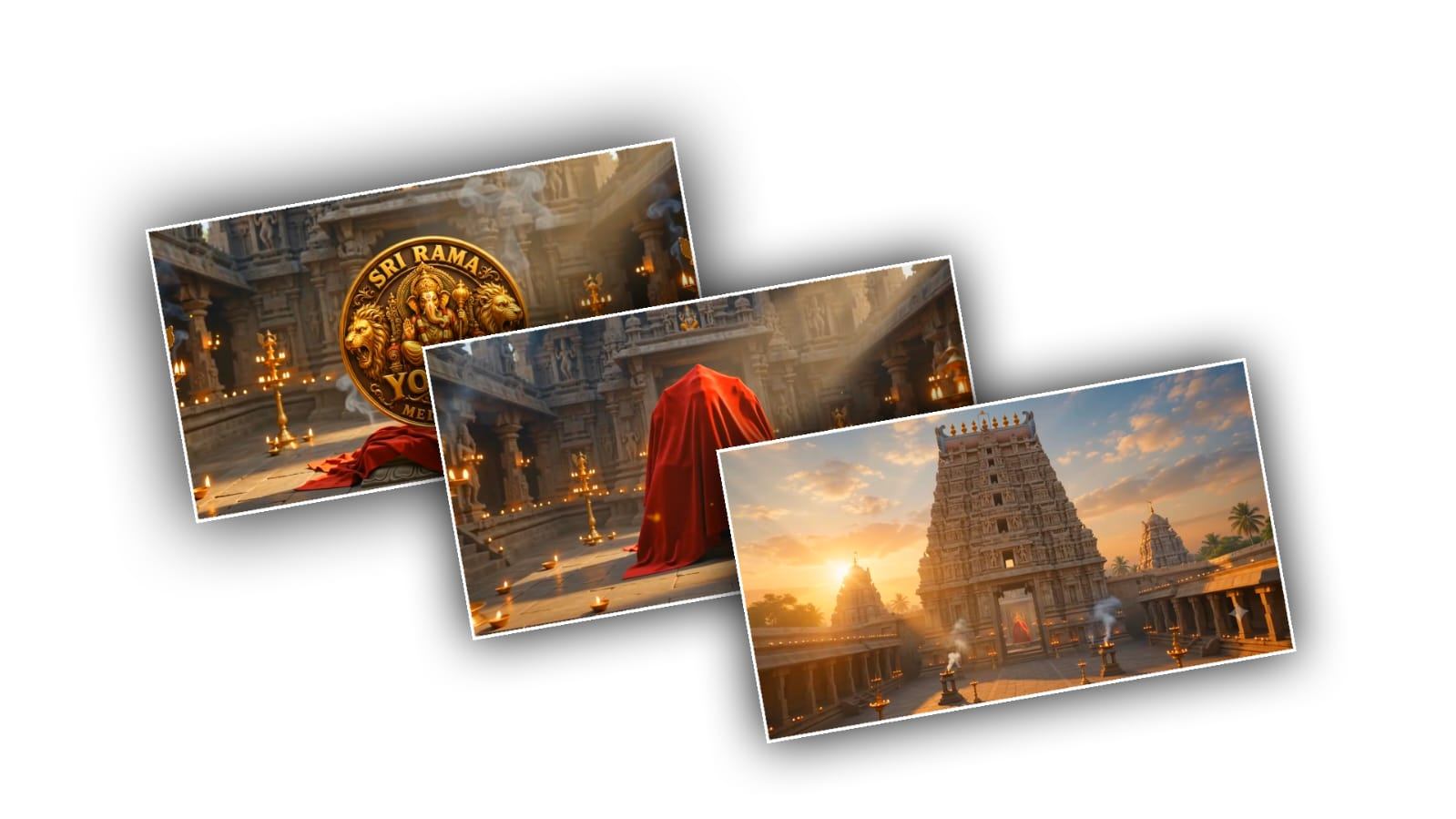
Use the uploaded baby photo as the ONLY and EXACT character reference for the baby. Preserve the exact face, facial identity, hairstyle, skin tone, body proportions and natural features exactly as shown in the uploaded photo. Do not use any previous scene frame as reference. Only change the clothing into a beautiful traditional baby Lord Krishna costume with blue silk dhoti, golden ornaments, peacock feather crown and flute. Baby Krishna stands inside a grand beautifully decorated Indian temple, holding the flute and looking toward the camera with a cute divine smile. Glowing diyas, flowers, soft golden divine light and floating flower petals. Slow cinematic camera pull-back revealing the beautiful festive temple. At the end, elegant glowing golden text appears clearly: "HAPPY KRISHNA JANMASHTAMI" and below it "May Lord Krishna Bless You With Happiness & Peace". Premium cinematic devotional ending, realistic, no face distortion, 10 seconds. 9:16 ratio