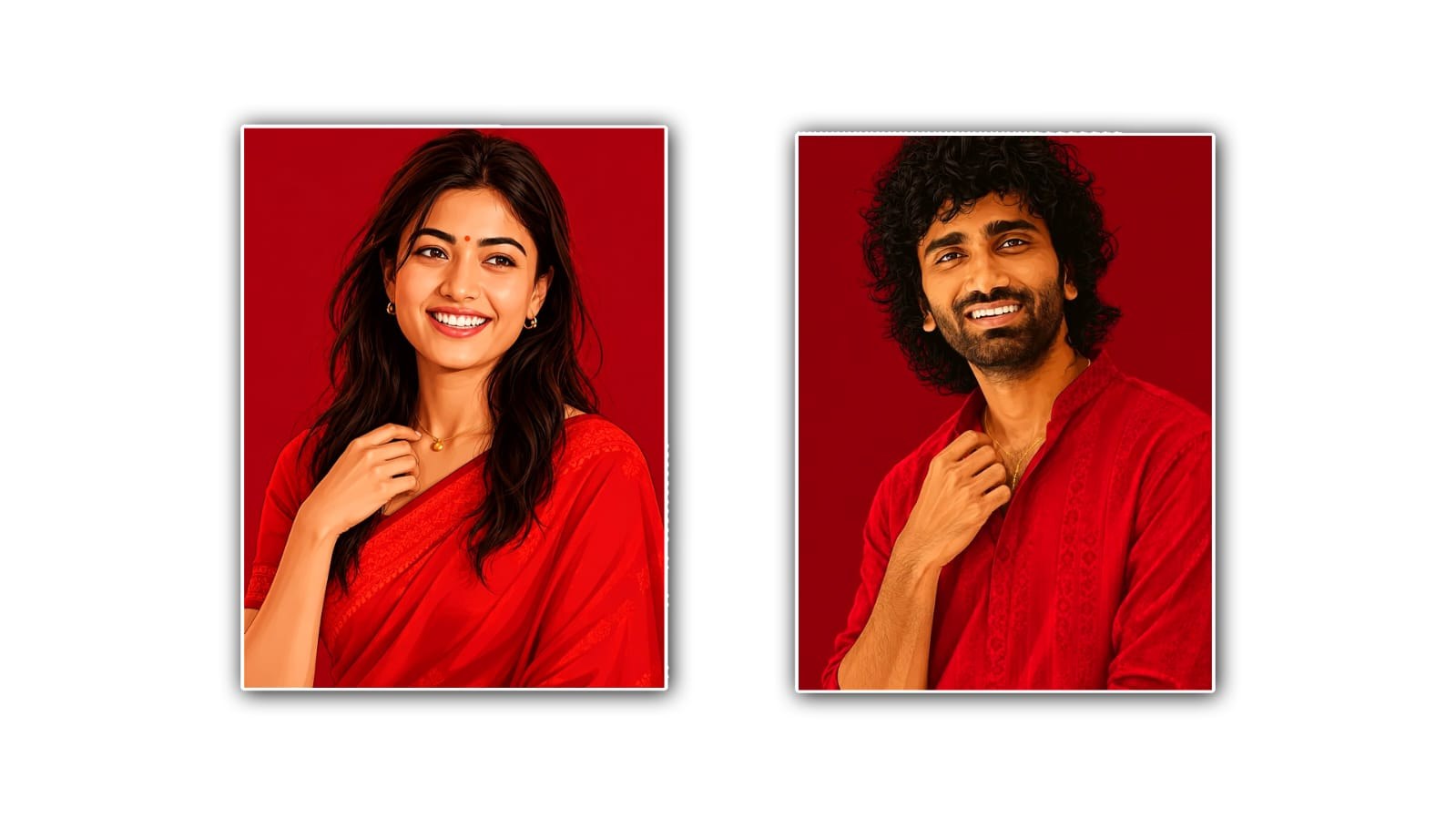
If you are active on Instagram, Facebook, or other social media platforms, you may have noticed the trending red effect photos that are getting a lot of attention these days. The red tone gives a normal photo a stylish, dramatic, and eye-catching look. The good thing is that you do not need to be a professional photo editor or spend hours learning complicated editing software. With Google Gemini AI, you can create this trending red-effect photo using a simple prompt and your original image.
Google Gemini has become useful for many creative tasks, including photo editing. You can upload your photo and tell Gemini exactly how you want it to look. For a red-effect edit, the main idea is to give the photo a strong, cinematic red tone while keeping the person’s face, clothes, body shape, and other important details natural. A good prompt can make a big difference in the final result.
First, open Google Gemini on your phone or computer and sign in with your Google account. Once Gemini is open, look for the option to upload an image. Select the photo that you want to edit from your gallery or computer. For the best result, choose a clear photo with good lighting. A portrait, outdoor photo, or fashion-style picture can work especially well for this trend.
After uploading the image, you need to give Gemini a proper editing instruction. Instead of simply writing “make it red,” describe the complete style you want. You can ask Gemini to create a deep red cinematic colour grade, add a soft red glow, improve contrast, and give the background a dramatic atmosphere. At the same time, tell it to keep your face realistic and preserve the original identity.
For example, you can use a prompt like: “Edit this photo with a trending strong red cinematic effect. Add rich red tones, soft red lighting, dramatic contrast, subtle glow, and a stylish social-media look. Keep my face, facial features, skin texture, hairstyle, clothes, and body shape natural and unchanged. Make the image realistic, high quality, sharp, and professionally colour graded.”
After sending the prompt, Gemini will process the image and generate the edited result. Depending on the photo, you may get a result that already looks good, but sometimes the first version may not exactly match what you imagined. This is completely normal with AI editing. You can continue the conversation and ask Gemini to make small changes instead of starting everything again.
For example, if the red effect is too strong, you can say, “Make the red effect slightly softer and keep the skin tone natural.” If the background is not dramatic enough, you can ask, “Increase the red ambient lighting in the background while keeping the person realistic.” These small instructions can help you get a more balanced final image.
One important thing to remember is that a good red effect should not make the entire image look completely red. The best trending edits usually have a balance between red highlights, darker shadows, natural skin tones, and enough contrast. If everything becomes bright red, the photo can lose its natural appearance. Therefore, ask Gemini to use red as a cinematic colour grade rather than covering every part of the image with the same colour.
You can also create different versions of the same trend. For a dark and powerful look, ask Gemini for deep crimson shadows, black contrast, and subtle red rim lighting. For a romantic look, request soft red-pink lighting with a gentle glow. If you want a luxury fashion appearance, ask for a dark red background, studio lighting, sharp details, and a premium editorial colour grade.
The background can also make a big difference. If your original background is simple, you can ask Gemini to enhance it with a subtle red atmosphere while preserving the main subject. For example, you can request a blurred city background with red lights, a dark studio background with red illumination, or a cinematic nighttime environment. However, make sure the prompt clearly says not to change the person’s identity.
Another useful trick is to mention the mood you want. AI understands descriptive words such as cinematic, dramatic, moody, stylish, editorial, realistic, premium, and atmospheric. Combining these words can help you get a more polished result. For example, “moody cinematic red lighting with realistic skin tones and professional fashion photography” gives Gemini more direction than simply saying “red photo.”
If you are editing a selfie, pay extra attention to the face. Ask Gemini to preserve your facial features and natural skin texture. You can write, “Do not alter my facial identity or make my face look like another person.” This can help reduce unwanted changes. You can also request natural skin tones even when the surrounding lighting has a strong colour.
For Instagram and other social media platforms, you may want to make the final image sharp and attractive without making it look artificial. Ask Gemini to improve clarity, lighting, contrast, and overall composition while keeping the image realistic. You can also ask for a high-resolution result suitable for social media posting.
The most important part of this editing trend is the prompt. A detailed prompt gives the AI a clear understanding of the style, lighting, colours, mood, and restrictions. You do not have to use complicated technical language. Write the prompt naturally and explain what you want as if you were telling a professional photo editor.
You can also experiment with several prompts to find your favourite style. Try a dark red cinematic version, a bright red fashion version, and a soft red portrait version. Compare the results and choose the one that looks most natural with your original photo. Every photograph has different lighting and colours, so the same prompt may produce different results on different images.
Before posting the edited photo, check important details such as your eyes, fingers, hair, clothes, and background. Sometimes AI editing can accidentally change small parts of an image. If you notice something unusual, simply ask Gemini to correct that specific area while keeping the rest of the edit unchanged.
Creating a trending red effect photo with Google Gemini AI is therefore quite simple. You mainly need a good original photograph, a clear editing prompt, and a little patience to refine the result. You do not need advanced Photoshop skills or complicated editing techniques. By explaining the desired red lighting, cinematic mood, natural skin, realistic details, and overall style, you can create an attractive photo that is ready to share on social media.
The trend is also a good example of how AI is making creative photo editing easier for ordinary users. Earlier, achieving this type of colour grading required editing apps and knowledge of brightness, contrast, saturation, curves, and colour tones. Now, you can describe the look in normal language and let AI handle much of the editing work.
So, if you want to try the trending red effect, upload your favourite photo to Google Gemini, use a detailed prompt, and experiment with the intensity of the red lighting. Keep the face and important details natural, avoid excessive colour, and make small adjustments until the result feels right. With a little experimentation, you can create a stylish red cinematic photo that looks modern, attractive, and suitable for your social media profile.
IMAGE PROMPT
Use the uploaded photo as the exact person reference and recreate it in the same visual style, composition, colours, lighting, clothing treatment and red background as the reference image. Preserve the uploaded person’s exact face, identity, hairstyle, hair texture, facial features, skin tone and natural expression. Do not change the person or generate a different face. Match the reference image’s deep crimson-red monochrome aesthetic, red outfit, solid red background, warm orange-red skin tones, cinematic lighting, realistic digital-painting finish and premium portrait look. Keep the result natural, highly detailed and realistic. No text, no logo, no watermark, no extra objects. 4:5 vertical portrait, high resolution.