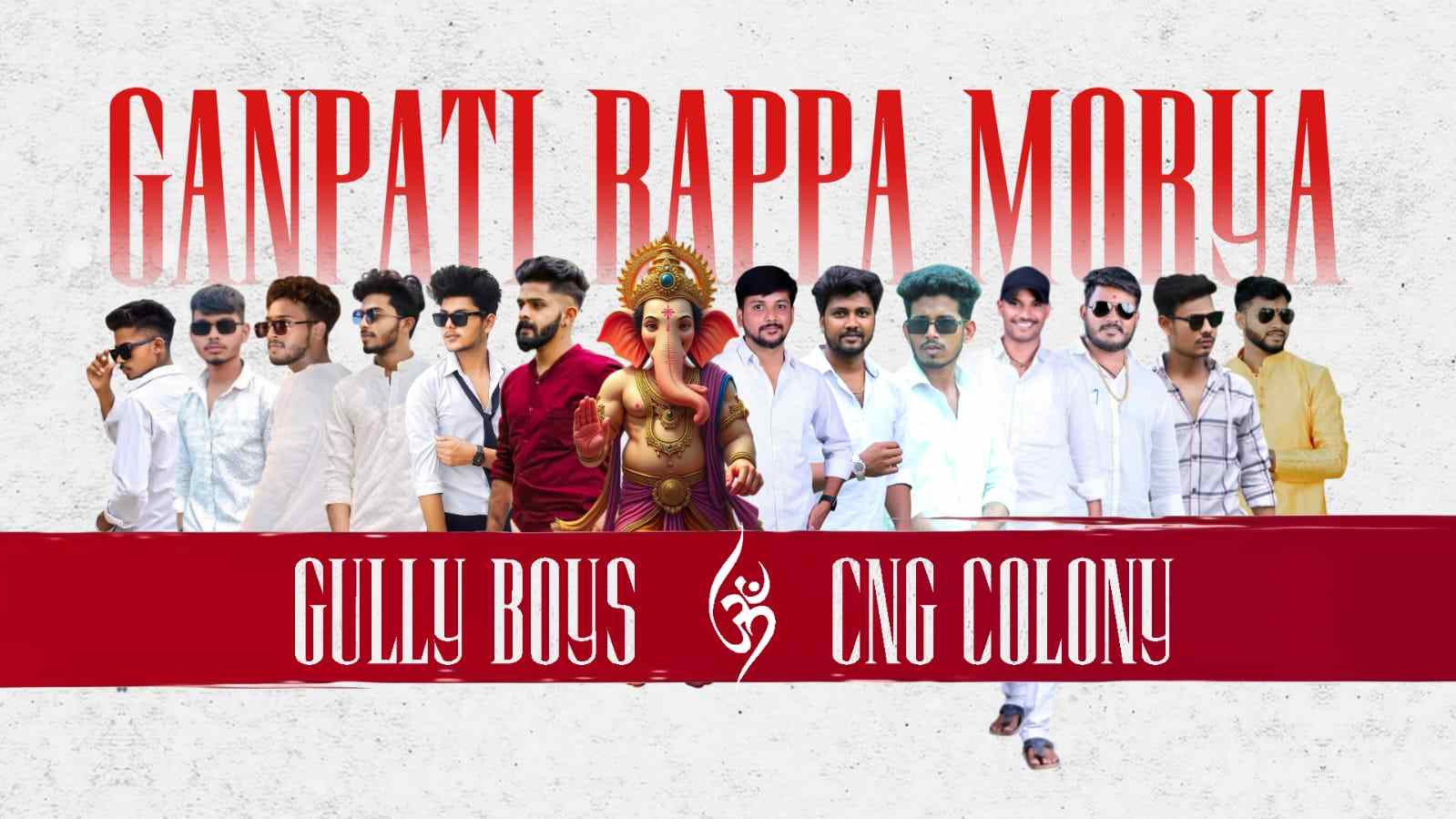
Creating a video of Ganesh youth members is a great way to show the energy, unity, and devotion of a group during Ganesh Chaturthi celebrations. With Alight Motion, you can turn simple photos and video clips of your youth members into an attractive, powerful, and professional-looking edit. You do not need expensive editing software or advanced editing experience. A smartphone, some good photos or clips, and a little creativity are enough to create a stylish Ganesh video for youth members.
First, collect all the photos and videos you want to use. Choose clear pictures of your Ganesh idol, youth members, decorations, procession moments, group photos, and celebration scenes. Try to select images with good lighting and different poses so that the final video does not look repetitive. You can also collect a few short video clips showing the celebration, dancing, decorations, or members working together. Before starting the edit, arrange your media in the order in which you want it to appear. This will save time while editing in Alight Motion.
Open Alight Motion and create a new project. For Instagram Reels, YouTube Shorts, or WhatsApp Status, a vertical 9:16 format is usually a good choice. You can select a suitable resolution and frame rate depending on your phone and the quality of your original clips. Once the project is ready, import your first photo or video. Adjust its duration according to the music. Shorter durations can make the edit feel energetic, while slightly longer durations work well for important group photos or emotional moments.
Music is one of the most important parts of this type of video. Choose a Ganesh devotional song, energetic festival beat, or instrumental track that matches the mood of your celebration. After importing the music, listen carefully and identify the beats or key points where you want your photos and clips to change. You can place markers or manually cut the clips so that important transitions happen in time with the music. Beat-synced editing makes even a simple photo video feel much more professional.
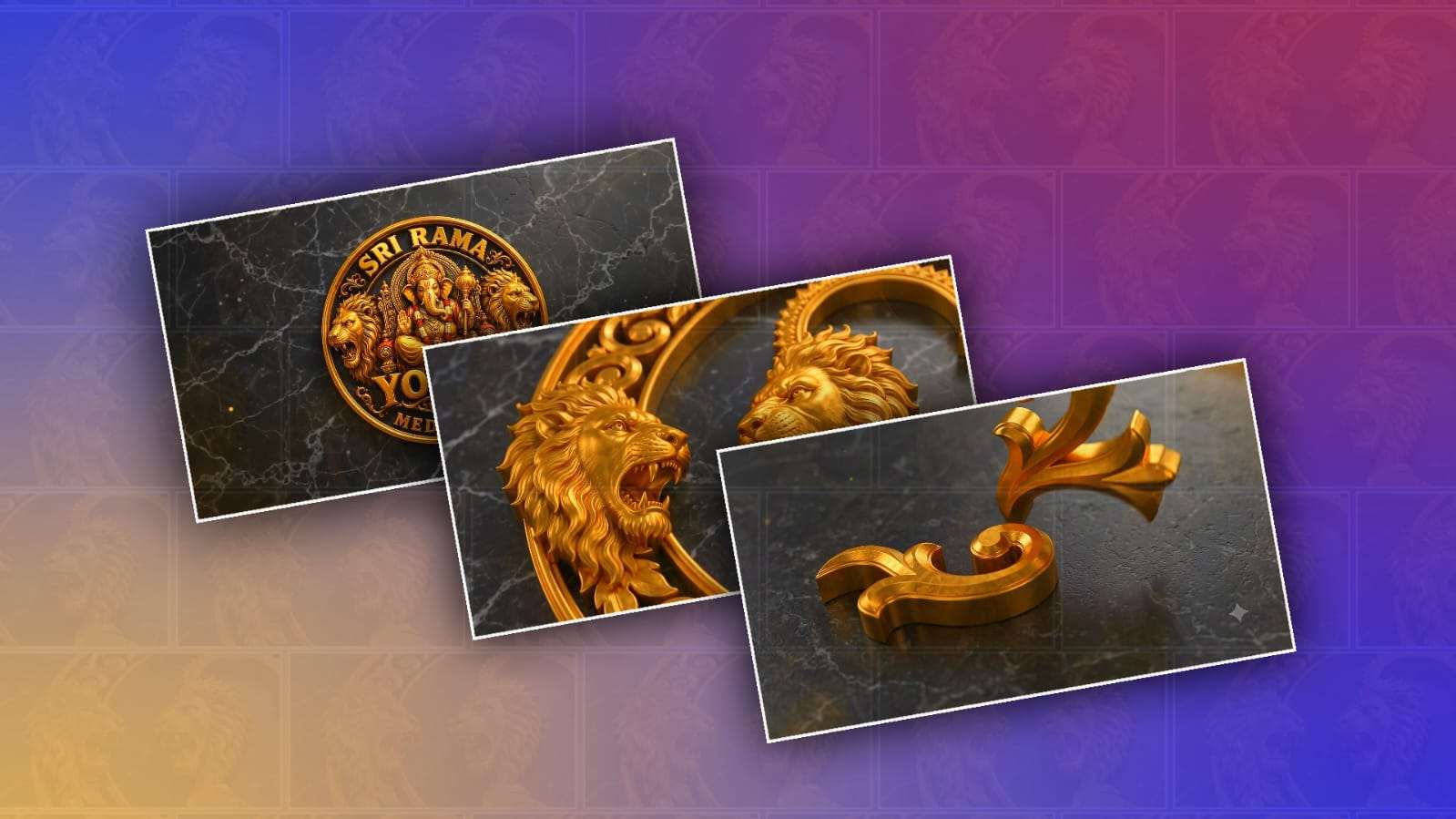
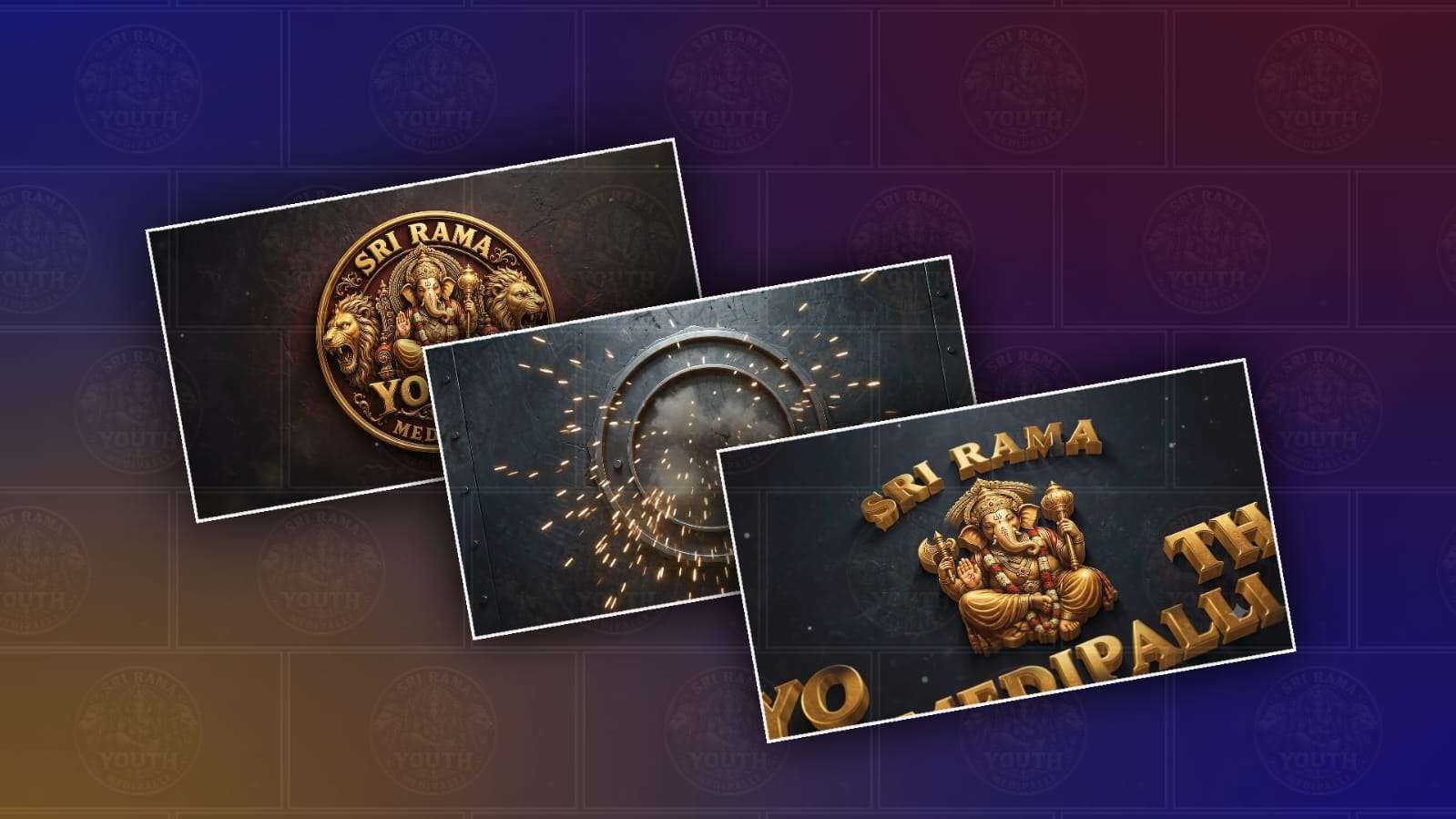
For the opening, start with a strong Ganesh image or a short video of the idol. You can add a simple zoom-in effect to make the first scene more attractive. A dark background with a glowing Ganesh image can also create a powerful introduction. Add text such as the name of your Ganesh youth group, the celebration name, or the year. Keep the opening text simple and readable instead of filling the screen with too many words.
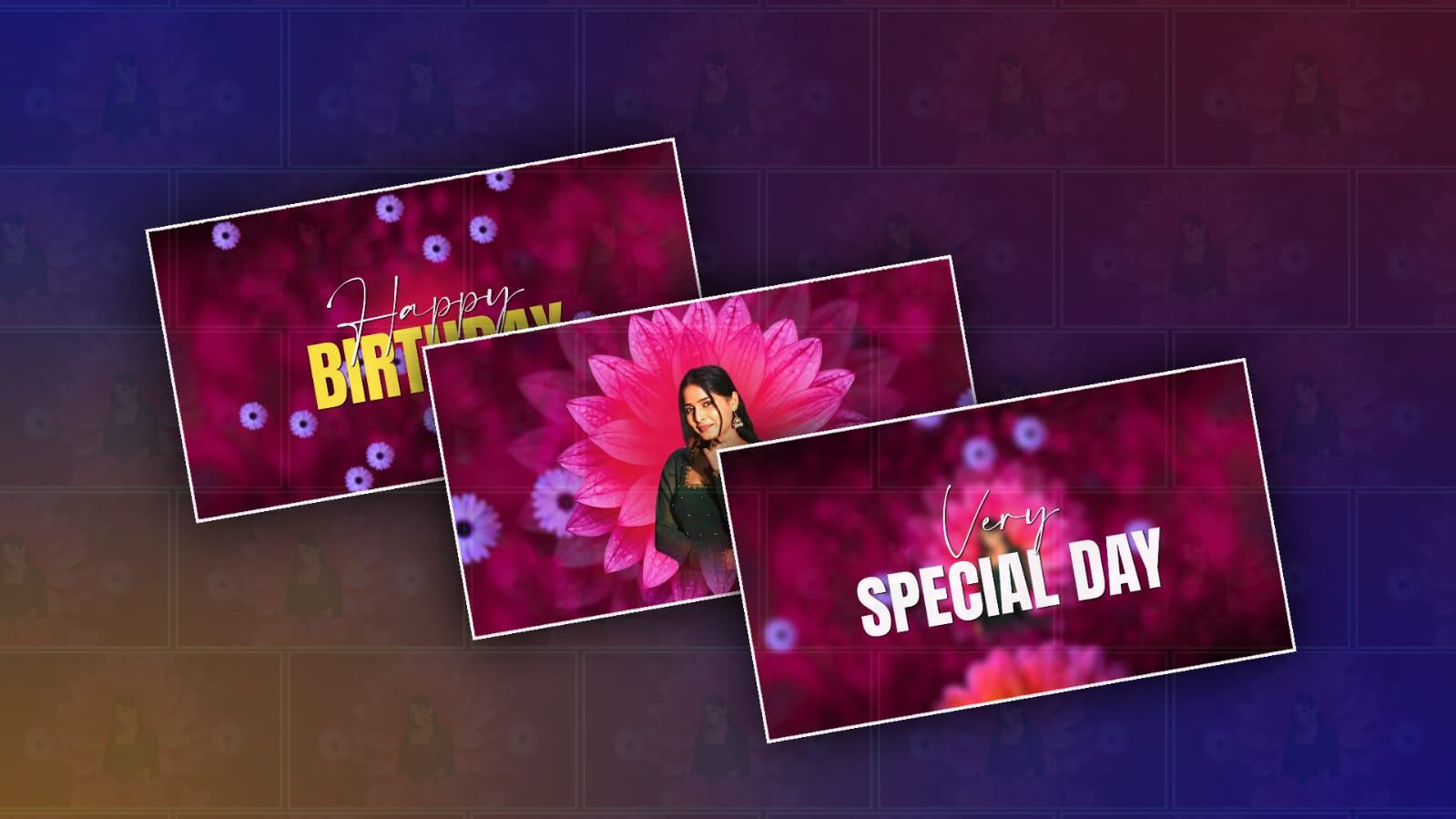
After the opening, introduce the youth members through individual photos or group pictures. You can use a quick zoom, slide, or shake effect when each photo appears. Try to keep the movement connected to the music beat. If you have many members, you can create a fast photo sequence where each image appears for a short time. For special members or group leaders, you can keep their photos on screen slightly longer and add their names using clean text animation.
Alight Motion provides many useful animation options. You can animate the position, scale, rotation, and opacity of a layer using keyframes. For example, select a photo, add a keyframe at the beginning with a slightly smaller scale, and add another keyframe later with a larger scale. This creates a smooth zoom effect. You can also move the image slightly from one side to another to create a cinematic camera movement. Avoid using too many effects on every photo because excessive animation can make the video look messy.
Transitions are another important part of the edit. Instead of using the same transition throughout the entire video, combine a few simple effects. You can use fade transitions for emotional scenes, quick zoom transitions for energetic beats, and directional movement for fast photo changes. A flash or light transition can work nicely with powerful beats, but it should be used carefully. The goal is to make the photos connect smoothly rather than distract viewers from the Ganesh celebration.
You can also add overlays to give the video a festive appearance. Light particles, glowing effects, bokeh, smoke, sparkles, or subtle colour overlays can add depth to the edit. Place these elements above your photos and adjust their opacity so they blend naturally. Golden, orange, red, and yellow tones can work especially well for a Ganesh festival theme. If the original photos already have strong colours, use effects lightly so the final video does not become oversaturated.
Text can help tell the story of your youth group. You might include the group name, locality name, Ganesh Chaturthi greetings, the year, or a short devotional message. Use one or two fonts consistently throughout the video. Bold fonts are useful for titles, while simpler fonts are better for names and smaller information. Add a small shadow or outline when necessary so the text remains readable over bright photos.
If you want a more energetic youth-style edit, use quick cuts between group photos and celebration clips. Match the cuts to the beat and occasionally add a small shake or zoom effect. You can also combine multiple photos in one scene by placing them on separate layers and animating them into the frame. This creates a collage-style appearance and is especially useful when you want to show many members in a short video. Colour or adjustment can make your final video look more consistent. Different phones often produce photos with different brightness and colours, so use Alight Motion colour and adjustment tools to make them look closer to one another. Slightly increase contrast and saturation if needed, but avoid making skin tones unnatural. A consistent colour style will make the entire video feel like one professionally edited project.
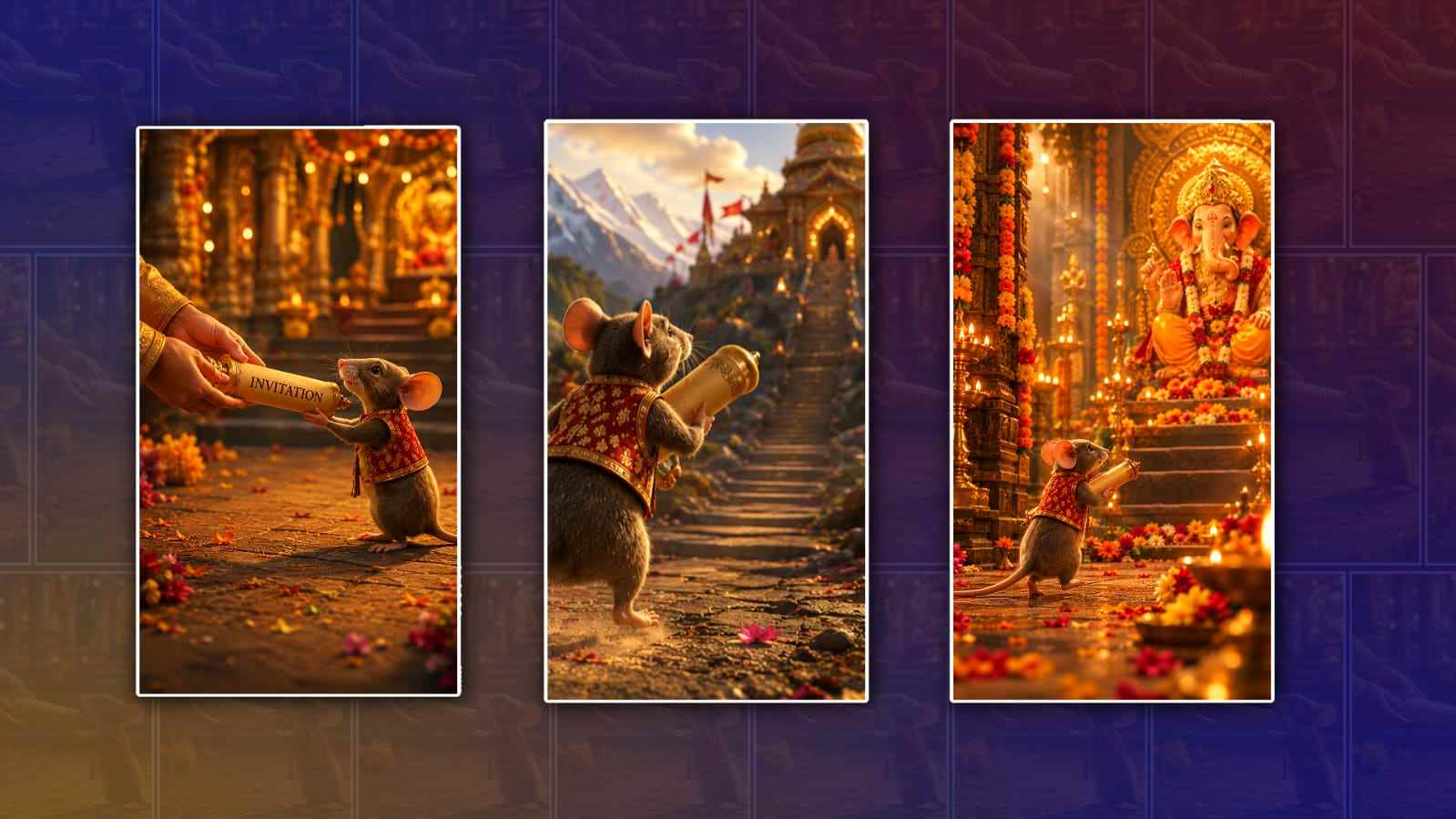
At the end, bring the focus back to Lord Ganesh or your complete youth group. You can use a final group photo with a slow zoom and add a message such as a Ganesh Chaturthi greeting. Let the final scene stay on screen for a little longer so viewers have time to read the message. A smooth fade-out with the final beat of the music can give the video a clean ending.
Before exporting, watch the complete video several times. Check whether the photos change on the beat, whether the text is readable, and whether any transition feels too fast or too strong. Also check the beginning and ending carefully because these are the parts viewers are most likely to remember. If something feels crowded, remove an effect rather than adding another one.
When you are satisfied with the edit, export the video in a quality suitable for your platform. For social media, a vertical Full HD video is generally a good option when your original media supports it. Keep a copy of the project so you can make changes later or create another version with different music.
The most important thing is to keep the video connected to the spirit of the Ganesh celebration. Good editing is not only about effects; it is about showing the happiness, friendship, teamwork, devotion, and memories of the youth members. With carefully selected photos, beat-synced music, smooth animations, simple text, and a few well-used effects, Alight Motion can help you create a Ganesh youth members video that looks energetic, emotional, and memorable.