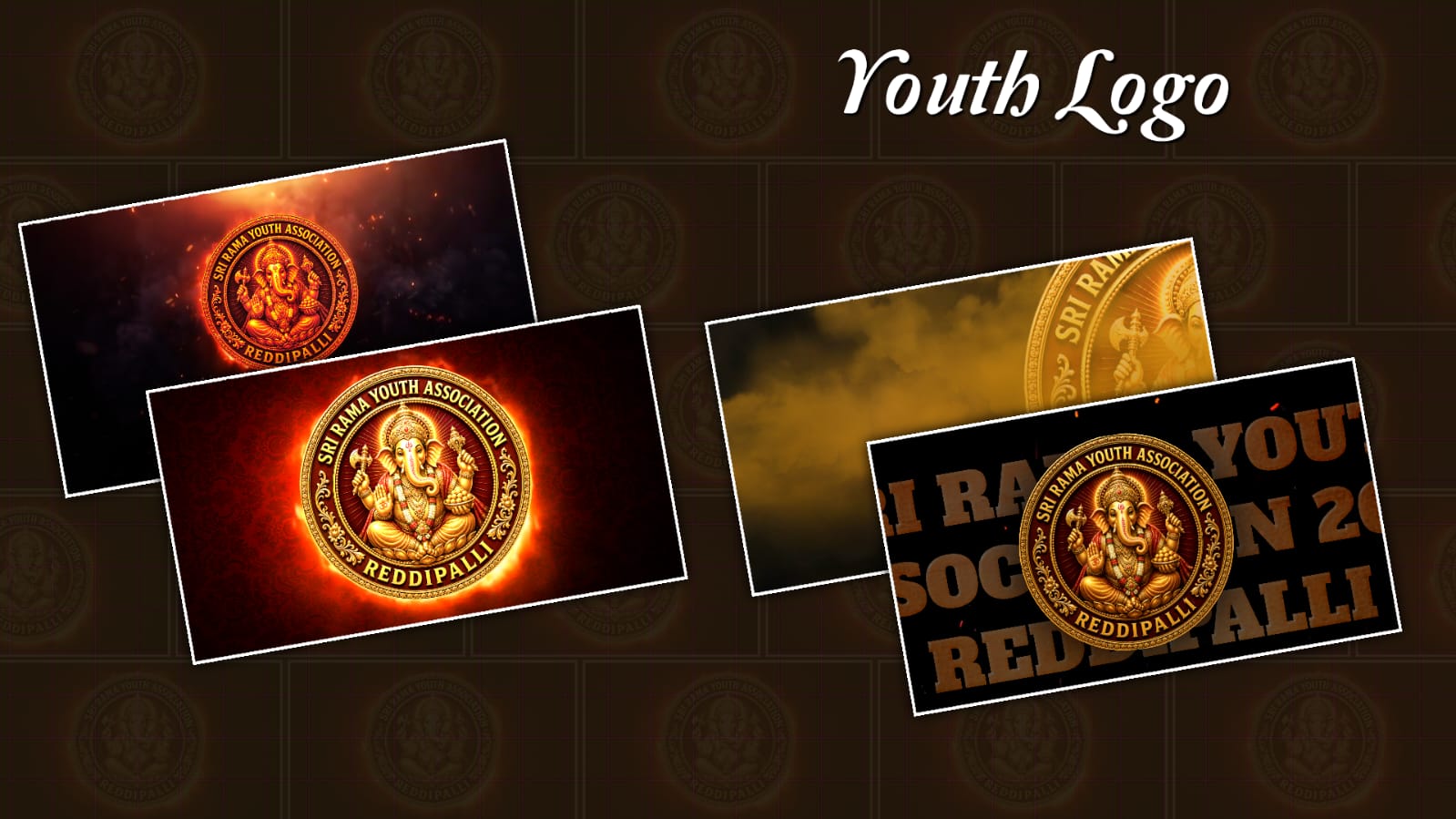
Introduction
Ganesh youth logo animation videos have become a popular way to showcase festival celebrations, youth group identity, and creative editing skills on social media. Whether you’re creating an intro for your Ganesh Mandal, designing a status video, or making content for Instagram, YouTube, or Facebook, Alight Motion provides powerful tools to create professional-looking animations directly from your smartphone. The good news is that you don’t need expensive software or years of editing experience. With the right workflow and a basic understanding of keyframes, effects, and timing, you can create an eye-catching Ganesh youth logo animation that looks smooth and modern. This guide walks you through every step, from preparing your project to exporting a high-quality video.
Table of Contents
- What Is a Ganesh Youth Logo Animation?
- Why Use Alight Motion?
- What You’ll Need Before You Start
- Step-by-Step Guide to Create the Animation
- Best Effects for Trending Logo Animations
- Export Settings for High Quality
- Comparison Table
- Practical Tips
- Common Mistakes to Avoid
- Frequently Asked Questions
- Conclusion
- Call to Action
What Is a Ganesh Youth Logo Animation?
A Ganesh youth logo animation is a short motion graphic featuring a custom logo, Lord Ganesha-themed artwork, typography, and visual effects. These videos are commonly shared during Ganesh Chaturthi celebrations and by youth groups to promote events or create stylish social media content.
Most trending logo animations include:
- Animated logo reveal
- Glow and lighting effects
- Beat-synced transitions
- Particle effects
- Background music
- Camera movement
- Color grading
The final video usually lasts between 15 and 45 seconds, making it ideal for social media sharing.
Why Use Alight Motion?
Alight Motion is one of the most popular mobile motion graphics apps because it combines professional editing tools with an easy-to-use interface.
Some useful features include:
- Multi-layer editing
- Keyframe animation
- Shape and vector support
- Motion blur
- Blend modes
- Visual effects
- Color correction
- Export in multiple resolutions
These features allow creators to produce dynamic logo animations without needing desktop editing software.
What You’ll Need Before You Start
Before opening Alight Motion, prepare all your project assets.
Required Files
- Transparent PNG Ganesh logo
- Youth group logo
- Background image or gradient
- Festival-themed fonts
- Music track
- Particle overlays (optional)
- Light leaks (optional)
Keeping everything organised before editing makes the workflow much smoother.
Step 1: Create a New Project
Open Alight Motion and create a new project.
Recommended settings:
- Resolution: 1080 × 1920 (Vertical)
- Frame Rate: 30 FPS or 60 FPS
- Background: Black or dark gradient
Vertical videos work best for Instagram Reels, YouTube Shorts, and Facebook Stories.
Step 2: Import Your Logo
Import your transparent PNG logo.
Place it in the centre of the screen and resize it while maintaining its proportions.
If your logo contains unnecessary space, crop it before importing to improve positioning.
Step 3: Add Background Elements
A clean background helps the logo stand out.
Popular choices include:
- Dark textured backgrounds
- Golden gradients
- Smoke overlays
- Festival lighting
- Temple silhouettes
- Abstract glowing shapes
Avoid overly busy backgrounds that distract viewers from the main logo.
Step 4: Animate the Logo
Keyframes are the foundation of smooth animation.
Start by animating:
Scale
Increase from 0% to 100%.
Rotation
Rotate slightly for a dynamic entrance.
Position
Move the logo upward or toward the centre.
Opacity
Fade from transparent to fully visible.
Combining these animations creates a more polished appearance than using a single effect.
Step 5: Add Motion Effects
Motion effects help create the trending style seen on social media.
Popular effects include:
- Motion Blur
- Shake
- Glow
- Directional Blur
- Radial Blur
- Gaussian Blur
- Shadow
- Color Shift
Use these effects carefully. Too many visual effects can reduce video quality and distract from the logo.
Step 6: Sync Animation with Music
Music synchronisation makes animations feel more engaging.
Listen carefully to the beat and place keyframes where the music changes.
For example:
- Beat drop → Logo zoom
- Drum hit → Flash effect
- Bass impact → Camera shake
- Melody rise → Glow increase
Even simple animations become more impactful when timed with the soundtrack.
Step 7: Add Text Animation
Include your youth group’s name or event title.
Good text animation ideas include:
- Fade In
- Typewriter effect
- Zoom In
- Slide Up
- Scale Bounce
Choose readable fonts and maintain enough spacing so the text remains clear on mobile screens.
Step 8: Enhance with Colour Grading. Colour grading gives your project a consistent visual style.
Warm golden tones often complement Ganesh-themed artwork.
Adjust:
- Brightness
- Contrast
- Saturation
- Highlights
- Shadows
Subtle adjustments usually produce a cleaner result than extreme colour changes.
Step 9: Export Your Video
Recommended export settings:
- Resolution: 1080p
- FPS: 30 or 60
- Format: MP4
- High bitrate
- H.264 codec (if available)
Preview the video before exporting to ensure animations appear smooth and text is readable.
Best Effects for Trending Ganesh Logo Animations
| Effect | Best Use |
|---|---|
| Motion Blur | Smooth movement |
| Glow | Highlight logo |
| Shake | Beat impact |
| Blur | Scene transitions |
| Light Rays | Dramatic intro |
| Particle Effects | Festival atmosphere |
| Camera Zoom | Dynamic motion |
| Shadow | Added depth |
Practical Tips
- Keep your project organised using separate layers.
- Name important layers to avoid confusion.
- Use smooth easing instead of linear animation.
- Limit unnecessary effects to maintain performance.
- Preview your animation frequently.
- Save project backups during editing.
- Use high-quality PNG files for sharper results.
- Maintain consistent colour tones throughout the video.
Common Mistakes
Many beginners make similar editing mistakes.
Avoid these issues:
- Using low-resolution logos
- Adding too many visual effects
- Ignoring music synchronisation
- Using unreadable fonts
- Exporting at low quality
- Overusing camera shake
- Making animations too fast
- Placing text too close to screen edges
Fixing these simple issues can significantly improve the final result.
Frequently Asked Questions
1. Is Alight Motion free?
Yes. Alight Motion offers a free version with many editing features. Some advanced tools and exports may require a subscription.
2. What resolution is best for social media?
A vertical resolution of 1080 × 1920 works well for most short-form video platforms.
3. Can beginners create professional-looking logo animations?
Yes. Learning keyframes, timing, and basic effects is enough to create impressive animations with practice.
4. Which file format should I use for my logo?
A transparent PNG file is recommended because it preserves image quality and removes unwanted backgrounds.
5. How can I make my animation smoother?
Use easing on keyframes, avoid excessive effects, and export at a suitable frame rate such as 30 FPS or 60 FPS.
Conclusion
Creating a trending Ganesh youth logo animation in Alight Motion is a combination of good design, smooth keyframe animation, thoughtful music synchronisation, and clean visual effects. Instead of relying on excessive transitions, focus on balanced movement, readable typography, and consistent colour grading. With regular practice, you can develop your own editing style while producing high-quality festival-themed videos that look professional across social media platforms.
Call to Action
Start your next Ganesh youth logo animation project today by gathering your logo, choosing a clean background, and experimenting with keyframes in Alight Motion. As your editing skills improve, try creating unique animations that reflect your group’s identity while keeping your designs clear, engaging, and easy to watch.
All Projects
Style 1
Font Click Here
AM Preset Click Here
Style 2
Fonts Click Here
AM Preset Click Here
Style 3
Fonts Click Here
AM Preset Click Here
Style 4
3D Text Prompt
Create a premium luxury 3D golden typography logo with the custom text:
“YOUR MAIN NAME”
“YOUR SUBTITLE”
Replace these two lines with my custom text exactly as provided.
Design the typography in an elegant royal style with bold serif letters, metallic gold texture, embossed 3D effect, glossy reflections, bevelled edges, luxury engraving details, ornamental flourishes, baroque decorations, symmetrical composition, premium calligraphy, decorative swirls, and an expensive cinematic branding look. The main title should be very large and dominant. The subtitle should be placed below inside a luxury curved ribbon/banner with matching golden metallic styling. Use ultra-realistic gold material, sparkling highlights, soft golden glow, dramatic cinematic lighting, realistic shadows, depth, and premium luxury finish. The logo must have a transparent PNG background (no checkerboard visible), isolated object only, centred composition, no watermark, no mockup, no border, no extra objects, no extra text, no icons, no symbols, no people. Hyper-detailed, photorealistic 3D typography, luxury emblem logo, award-winning design, ultra-sharp focus, 8K, HDR, professional branding, premium quality.
Logo Prompt
Create a premium luxury 3D golden typography logo with the text “YOUR NAME HERE” in the center. Use highly detailed metallic gold lettering with elegant curves, ornamental flourishes, royal styling, glossy reflections, embossed effect, cinematic lighting, and luxury branding aesthetics. Place the text “SINCE 2025” below the main title in smaller golden font. Add decorative golden swirls, glowing highlights, depth, shadows, and a rich golden shine. Background should be transparent PNG. Ultra HD 8K quality, professional logo design, symmetrical composition, sharp details, realistic gold texture, premium typography, luxury emblem style, royal golden logo, black and gold branding look. No watermark, no extra text, only the logo design. High resolution, PNG with transparent background.