Introduction
Short-form cartoon editing has become one of the most popular content styles on platforms like YouTube Shorts, Instagram Reels, and Facebook. Among these, the Trending Motu & Patlu dialogue cartoon animated videos editing tutorial is a topic many beginners search for because this editing style combines funny dialogue, simple animation, sound effects, and engaging visuals.
The goal is not just to place cartoon clips together. A good editor creates smooth transitions, matches dialogue with visuals, adds subtitles, and keeps viewers interested from the first second to the last.
This guide explains every important step, from planning your edit to exporting a high-quality video. It also covers useful editing tips, common mistakes, and best practices for creating entertaining animated dialogue videos while respecting copyright rules.
Table of Contents
- What Is a Motu & Patlu Dialogue Animation Edit?
- Tools You Need
- Planning Your Video
- Step-by-Step Editing Tutorial
- Adding Captions and Sound Effects
- Export Settings
- Best Practices
- Comparison of Popular Editing Apps
- Practical Tips
- Common Mistakes to Avoid
- Conclusion
What Is a Motu & Patlu Dialogue Animation Edit?
A dialogue animation edit is a short video that combines cartoon scenes with carefully timed editing. The focus is usually on funny conversations, emotional reactions, or entertaining moments.
Instead of uploading random cartoon clips, creators improve the viewing experience by adding:
- Animated subtitles
- Zoom effects
- Sound effects
- Background music
- Smooth transitions
- Color adjustments
- Motion effects
Good editing makes familiar scenes feel fresh and entertaining.
Tools You Need
You do not need expensive software to create quality animated dialogue edits. Many beginners start with mobile editing apps before moving to desktop software.
Popular options include:
- CapCut
- VN Video Editor
- KineMaster
- Alight Motion
- Adobe Premiere Pro
- DaVinci Resolve
Choose an editor that supports:
- Multiple video layers
- Keyframe animation
- Text animation
- Audio editing
- Export in HD or Full HD
Planning Your Video
Many beginners immediately start editing without planning. This often leads to videos that feel slow or confusing.
Before opening your editing software:
Select a Theme
Choose one clear idea.
Examples include:
- Funny dialogue
- Friendship moments
- Comedy reactions
- Emotional scenes
- Trending meme format
Keeping one theme throughout the video makes it easier for viewers to follow.
Organise Your Clips
Arrange your scenes before editing.
Place them in the order they will appear so you spend less time searching for files during editing.
Decide the Video Length
For short-form platforms:
- 20–30 seconds works well for Shorts.
- 30–60 seconds suits Reels.
- Longer edits are better for YouTube videos.
Remove unnecessary scenes that slow down the pace.
Step 1: Import Your Media
Create a new project and import:
- Cartoon clips
- Dialogue audio (if you have permission to use it)
- Background music
- Sound effects
- Logo or watermark
Keep everything organised in folders for faster editing.
Step 2: Trim Unnecessary Parts
Watch every clip carefully.
Cut:
- Long pauses
- Repeated reactions
- Empty frames
- Slow introductions
Fast pacing usually keeps viewers engaged.
Step 3: Match Dialogue with Visuals
Dialogue should match the character’s movement.
If speech starts before or after the animation, the video feels unnatural.
Zoom into the timeline and align every important sound with the character’s expressions.
Step 4: Add Smooth Transitions
Avoid using too many flashy transitions.
Simple cuts often work best.
Use transitions only when changing scenes naturally.
Examples include:
- Fade
- Dissolve
- Swipe
- Zoom transition
Step 5: Add Animated Captions
Many viewers watch videos without sound.
Captions help them understand the conversation.
Make subtitles:
- Easy to read
- Large enough for mobile screens
- High contrast
- Properly synchronized
Avoid covering the characters’ faces.
Step 6: Add Sound Effects
Small sound effects make edits feel more energetic.
Common choices include:
- Pop
- Whoosh
- Punch
- Laugh
- Cartoon bounce
Use them only where they improve the scene.
Too many effects can distract viewers.
Step 7: Use Background Music Carefully
Background music should support the dialogue instead of overpowering it.
Reduce music volume whenever characters speak.
Balance all audio tracks before exporting.
Step 8: Apply Colour Adjustments
Minor colour improvements can make the video look cleaner.
Adjust:
- Brightness
- Contrast
- Saturation
- Sharpness
Avoid excessive filters that change the original animation too much.
Step 9: Export the Video
Most creators export using:
- MP4 format
- 1080p resolution
- 30 or 60 FPS
- High bitrate
Watch the exported file before uploading.
Check for:
- Audio sync
- Subtitle timing
- Export errors
Adding Captions and Sound Effects
Captions improve accessibility and increase watch time.
For better readability:
- Use simple fonts.
- Keep one or two lines only.
- Highlight important words.
- Maintain consistent colours.
Sound effects should match the action.
For example:
- Running scenes → Footstep sounds
- Funny reactions → Cartoon pops
- Fast movement → Whoosh effects
Always make sure you have the right to use any audio, music, or clips included in your project.
Export Settings
| Setting | Recommended Value |
|---|---|
| Resolution | 1920 × 1080 |
| Frame Rate | 30 FPS or 60 FPS |
| Format | MP4 |
| Codec | H.264 |
| Audio | AAC |
| Orientation | Vertical (9:16) for Shorts and Reels |
These settings generally provide a good balance between quality and file size.
Comparison of Popular Editing Apps
| App | Beginner Friendly | Advanced Features | Free Version |
|---|---|---|---|
| CapCut | Excellent | Good | Yes |
| VN Video Editor | Excellent | Good | Yes |
| KineMaster | Very Good | Very Good | Yes |
| Alight Motion | Moderate | Excellent | Yes |
| Adobe Premiere Pro | Moderate | Professional | Trial Available |
| DaVinci Resolve | Moderate | Professional | Yes |
Choose the editor that matches your skill level rather than the one with the most features.
Practical Tips
Improve your editing with these simple practices:
- Watch your video from beginning to end before exporting.
- Keep subtitles readable on small screens.
- Remove unnecessary pauses.
- Maintain consistent font styles.
- Save your project regularly.
- Use keyboard shortcuts if editing on a computer
- Organise files into folders before starting.
- Preview every transition before final export.
- Focus on storytelling instead of adding too many visual effects.
- Respect copyright by using only content you have permission to use or content that qualifies under applicable laws and platform policies.
Common Mistakes
Many beginners repeat the same editing errors.
Avoid these issues:
- Using too many transitions.
- Overloading videos with effects.
- Poor subtitle timing.
- Loud background music.
- Low-quality exports.
- Cropping characters incorrectly.
- Ignoring audio synchronisation.
- Using inconsistent fonts.
- Uploading without reviewing the final video.
- Reusing copyrighted material without permission, which can lead to copyright claims or removal by platforms.
Best Practices for Better Viewer Engagement
Small improvements can make a noticeable difference in how viewers experience your videos.
Try to:
- Start with an attention-grabbing scene.
- Keep edits fast and focused.
- Use smooth zooms only when they add emphasis.
- End with a satisfying or funny moment.
- Maintain consistent visual quality across all clips.
- Check your video on a mobile device before publishing, since most viewers watch on phones.
Consistent editing quality is more important than adding every available effect.
Conclusion
Creating a Trending Motu & Patlu dialogue cartoon animated video editing tutorial is about much more than cutting clips together. Successful edits combine good timing, clear storytelling, readable captions, balanced audio, and thoughtful visual effects to create an enjoyable viewing experience. Beginners should focus first on the basics—clean cuts, synchronised dialogue, and simple transitions—before experimenting with advanced animations. With regular practice and attention to quality, you can produce engaging cartoon dialogue edits that are enjoyable to watch while following copyright rules and platform guidelines. The more you refine your workflow and review your finished videos, the more polished your edits will become over time.
_____________________________________________________________
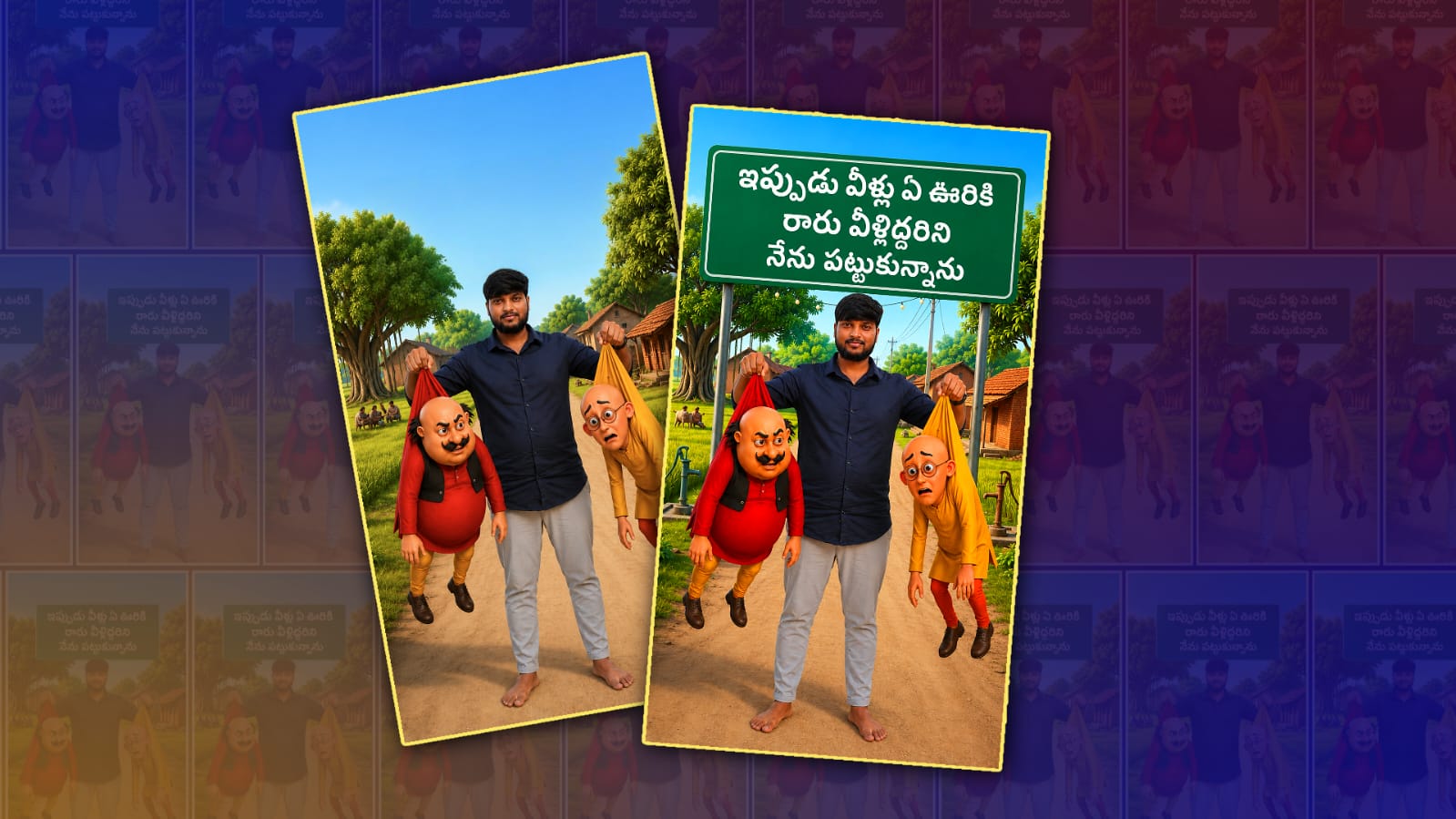
Motu & Patlu Image Download
_____________________________________________________________
Image Prompt
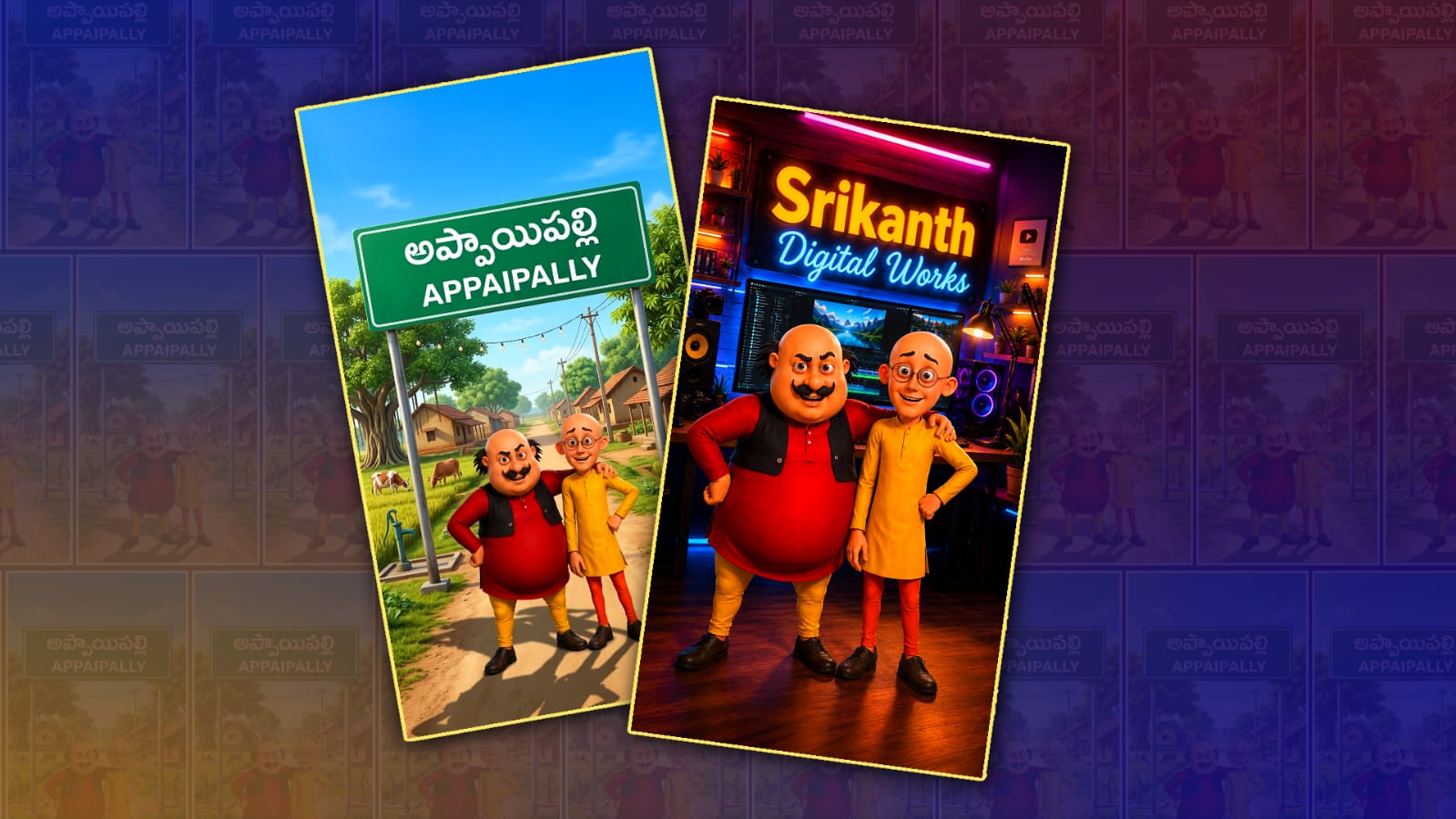
Use my uploaded person photo as the base. Keep my face, hairstyle, beard, skin tone, body shape, pose, facial expression, dress color, clothes, and identity exactly the same without any changes. I will upload one image containing both Motu and Patlu. Use those exact cartoon characters without changing their appearance, expressions, colors, clothes, or proportions. Create a funny realistic scene where I am holding Motu with my left hand and Patlu with my right hand by the back of their shirts, just like a viral pose. Add a beautiful Indian village background with a large green road signboard. Replace the village name completely and write this exact Telugu text on the signboard in bold white letters: “ఇప్పుడు వీళ్లు ఏ ఊరికి రారు, వీళ్లిద్దరిని నేను పట్టుకున్నాను.” Keep the text centered, clean, and perfectly readable. Ultra-realistic, cinematic, HDR, DSLR quality, 8K, sharp details, vertical 9:16. Do not change my face, hairstyle, beard, dress color, clothes, or identity. No extra fingers, no blur, no watermark.
_____________________________________________________________
Video Prompt-1
Use my uploaded image as the reference. Keep my face, hairstyle, beard, clothes, and identity exactly the same. I am holding Motu in my left hand and Patlu in my right hand by the back of their shirts. Create a funny cinematic village scene with realistic body movement, natural blinking, and perfect lip sync.
Scene: The person looks confidently at the camera, smiles, slightly lifts both Motu and Patlu, and says in Telugu:
Person: “ఇప్పుడు వీళ్లు ఏ ఊరికి రారు… వీళ్లిద్దరిని నేను పట్టుకున్నాను!”
Immediately after that, Motu and Patlu panic, move their hands and legs while hanging, look at the camera together, and shout in Telugu:
Motu & Patlu (together): “అయ్యో… మమ్మల్ని కాపాడండి! కాపాడండి!”
Add funny facial expressions, realistic physics, cinematic camera shake, natural ambient village sounds, and energetic comedy timing. Duration: 10 seconds, Ultra-realistic, 4K, HDR, vertical 9:16_____________________________________________________________
Video Prompt-2
Use my uploaded image as the reference. Keep my face, hairstyle, beard, skin tone, clothes, body, and identity exactly the same without any changes. I am holding Motu in my left hand and Patlu in my right hand by the back of their shirts. Use the exact uploaded cartoon characters. Create a funny, ultra-realistic cinematic village scene with perfect lip sync, realistic hand movement, natural blinking, and realistic physics. Vertical 9:16, 4K HDR.
Scene (0–5 sec):
The person looks confidently at the camera, smiles slightly, lifts both Motu and Patlu a little, and says clearly in Telugu:
“వీళ్లిద్దరిని నేను వదిలిపెట్టాలి అంటే… మీరు వెంటనే నా పేజీని ఫాలో చేయండి!”
Scene (5–10 sec):
Motu and Patlu become scared, shake their hands and legs while hanging, look directly at the camera together, and say in Telugu with funny expressions:
“ఫ్రెండ్స్… త్వరగా ఫాలో చేయండి! ప్లీజ్… మమ్మల్ని కాపాడండి!”
End with funny expressions, natural village ambience, cinematic camera movement, realistic shadows, comedy timing, and perfect Telugu lip sync. Duration exactly 10 seconds._____________________________________________________________