If you have seen the trending Motu & Patlu youth logo reveal videos on social media, you may have wondered how people create those stylish edits with glowing text, dramatic effects, smooth transitions, and cinematic backgrounds. The good news is that you can create a similar type of video concept using Google Gemini, even if you are not an experienced video editor. Gemini can help you develop the idea, prepare prompts, create visual assets, and guide you through the editing process. The final result depends on the tools and video-editing features available to you, but the overall workflow is quite simple.
Before starting, decide what kind of logo reveal you want. A youth-style video usually works best with a short duration, energetic music, bold typography, colourful lighting, and a strong final reveal. You can choose a dark cinematic background with neon blue, purple, red, or golden light. If you are creating a fan-made Motu & Patlu-themed edit, make sure you have the necessary rights or permission for any copyrighted characters, logos, music, or footage you use, especially if you plan to publish or monetise the video.
Start by opening Google Gemini and describing the video you want to make in clear language. Instead of simply asking for a “logo video,” explain the entire visual sequence. For example, you can describe a vertical 9:16 video with a dark background, particles moving through the screen, dramatic camera movement, glowing lights, energetic transitions, and a final youth logo appearing in the centre. You can also tell Gemini the preferred colours, mood, duration, text, and style.
The more specific your description is, the easier it becomes to get a useful result. You can ask Gemini to help you create a scene-by-scene concept. A simple sequence could begin with a completely dark screen. Small particles then appear and move toward the centre. A bright flash follows, revealing the first part of the logo. The camera can zoom forward while colourful light streaks pass across the screen. Finally, the complete logo appears with a glow, followed by a short shake or light burst. Keeping the reveal short makes it feel more like the quick videos commonly seen on social media.
If you are using Gemini to generate or assist with visual material, you can provide a prompt that describes the exact appearance you want. For example, you could request a high-energy cartoon-inspired youth logo reveal with vibrant lighting, cinematic depth, fast motion, colourful particles, and a clean final composition. If you are working with existing images, you can also ask Gemini for suggestions on how to improve their composition, colours, background, and placement.
One important point is that Gemini’s available image and video capabilities can change over time. Depending on your account, region, and the version of Gemini you are using, you may have different generation or editing features. If a particular video-generation option is not available, you can still use Gemini as a creative assistant and then complete the animation in a video editor.
For a logo reveal, preparing the logo separately can make the result look much cleaner. Use a high-quality transparent PNG if possible. The logo should have enough resolution that it does not become blurry when enlarged. If you have a youth-themed logo, consider adding a subtle outer glow, shadow, or colored rim around it. Avoid adding too many effects because the logo should remain readable when it finally appears.
After preparing your assets, move to the editing stage. You can use a video editor that supports layers, keyframes, effects, text animation, and sound. Import your background, logo, particles, and any additional elements. Set the project to a vertical 9:16 format if your goal is to post the video as a Reel, Short, or similar mobile-friendly content. A short duration of around five to ten seconds is usually enough for a logo reveal.
The first few seconds should create curiosity. Start with a dark background and gradually introduce movement. You can add small particles, smoke, light rays, or an abstract animated texture. Then use a quick zoom or camera movement to build energy. The logo should not appear immediately. A short delay creates anticipation and makes the reveal feel more dramatic.
Keyframe animation is especially useful here. You can begin with the logo at a smaller scale and slightly transparent, then increase its size while bringing the opacity to 100 per cent. Adding a little overshoot can make the animation feel more energetic. For example, the logo can briefly become slightly larger than its final size before settling back into position. This small movement can make a simple animation look much more professional.
Lighting is another important part of the effect. A glow behind the logo can make it stand out from the background. You can also add a bright flash exactly when the logo becomes visible. Keep the flash very short. If it lasts too long, it can hide the logo rather than enhance the reveal. Colored light streaks moving across the screen can also add a modern youth-oriented appearance.
Text animation can be added before or after the logo. If you want to include a name, tagline, or “Youth” text, use a bold font that remains readable on a phone screen. Animate the text with a quick fade, scale, or slide. Try to keep the typography consistent with the overall visual style. Too many different fonts and colours can make the video look unorganised.
Sound design can make a surprisingly big difference. A short whoosh can accompany the logo’s movement, while a bass hit or impact sound can emphasise the final reveal. You can also add a rising sound effect before the reveal and a short sparkle or impact immediately afterwards. If you use music, choose something you are legally allowed to use. Copyrighted songs can cause problems when uploading your video to social platforms.
Once the basic animation is finished, watch the video several times and check the timing. The reveal should happen at the strongest moment of the audio. Make sure the logo is visible long enough for viewers to recognise it. Check the edges of the video as well, because vertical platforms can crop or cover parts of the frame with interface elements.
You can return to Gemini throughout the process for creative suggestions. For example, you can ask it to suggest three different intro concepts, recommend colour combinations, improve a video-generation prompt, create a short storyboard, or suggest transitions that match a specific mood. This is where Gemini can be especially useful: instead of trying random effects, you can use it as a creative planning assistant.
Finally, export the finished video in a high-quality format suitable for social media. Watch the exported version on your phone before posting it. Sometimes colours, text size, or small details look different after compression. If the video looks too dark or the logo is difficult to read, increase the brightness and contrast slightly and export again.
The key to making a good trending-style Motu & Patlu youth logo reveal is not simply adding as many effects as possible. Strong timing, a clean logo, good sound design, controlled lighting, and a short dramatic reveal usually matter more. Google Gemini can help you turn your idea into a detailed concept and provide creative direction, while a capable video editor can give you precise control over the final animation. With a little experimentation, you can create a polished fan-style logo reveal that feels energetic, modern, and suitable for short-form video platforms.
Motu & Patlu Image Download
VIDEO PROMPT
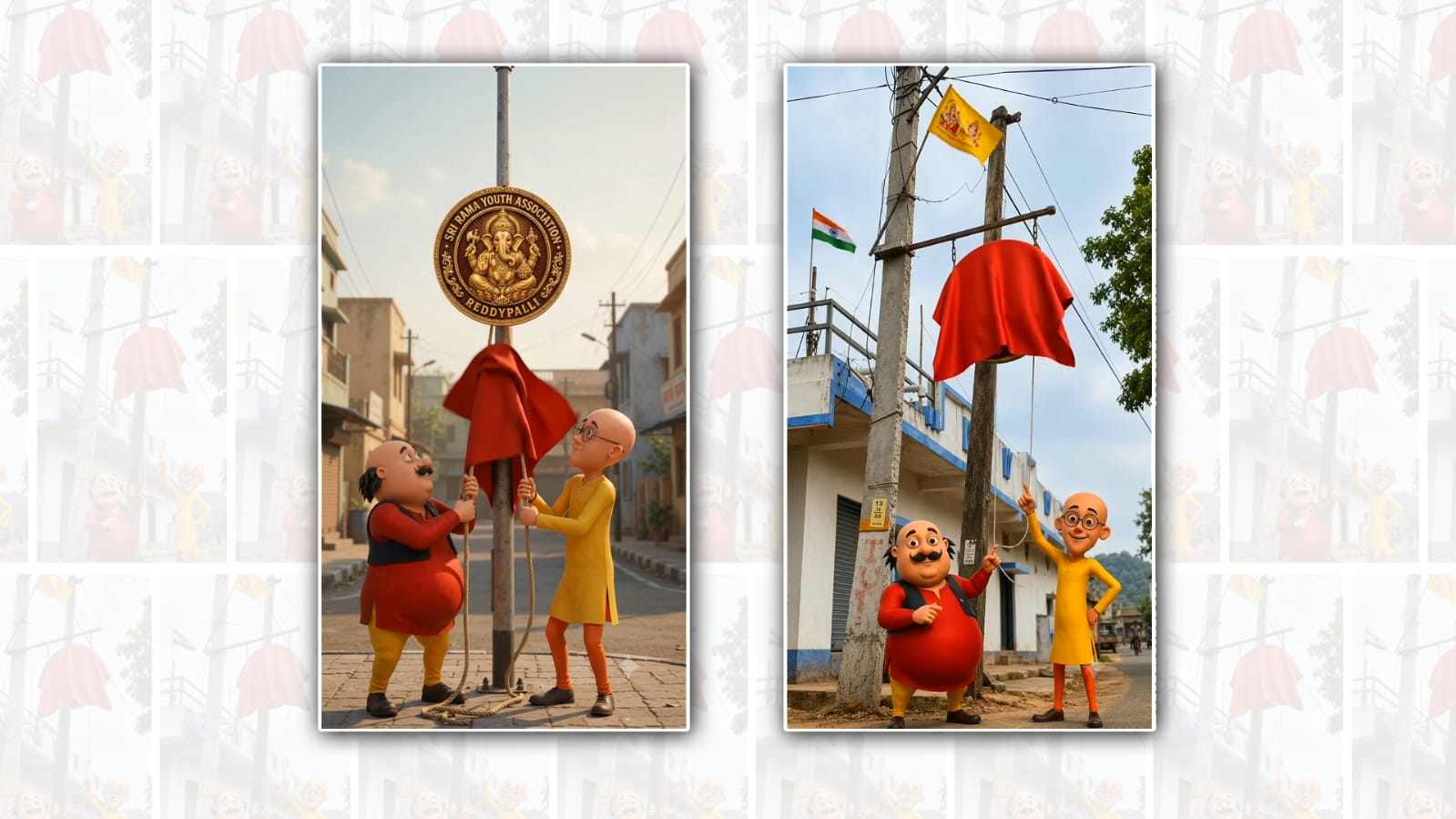
Use the uploaded Motu & Patlu image as the exact character reference, the uploaded logo as the exact logo reference, and the uploaded screenshot as the exact location/composition reference. Create a 10-second cinematic vertical 9:16 video. A realistic colony street with a single vertical street pole. The exact uploaded logo is physically mounted/hanging on the pole. The entire logo is completely covered by a rich red cloth. A rope is attached to the red cloth. Motu and Patlu stand below the logo and hold the rope together.

0–4s: Show the full colony setup. Motu and Patlu silently look at the covered logo with excited expressions. Red cloth moves naturally in the wind.

4–7s: Motu and Patlu pull the rope together. The rope physically removes only the red cloth, naturally revealing the exact uploaded logo. The logo stays fixed to the same pole and does not move.

7–10s: The cloth is completely removed. The exact logo is fully visible. Smoothly move the camera forward toward the logo for a cinematic close-up.

ABSOLUTE SILENT RULE: No voice, no dialogue, no talking, no lip-sync, no mouth movement, no voice-over, no character sounds. Motu and Patlu use ONLY facial expressions and body language. Completely silent video; background music will be added separately. Do not redesign the logo. Do not change the characters. No floating logo, no teleportation, no scene change, no extra characters. Realistic cloth/rope physics and smooth cinematic camera movement.