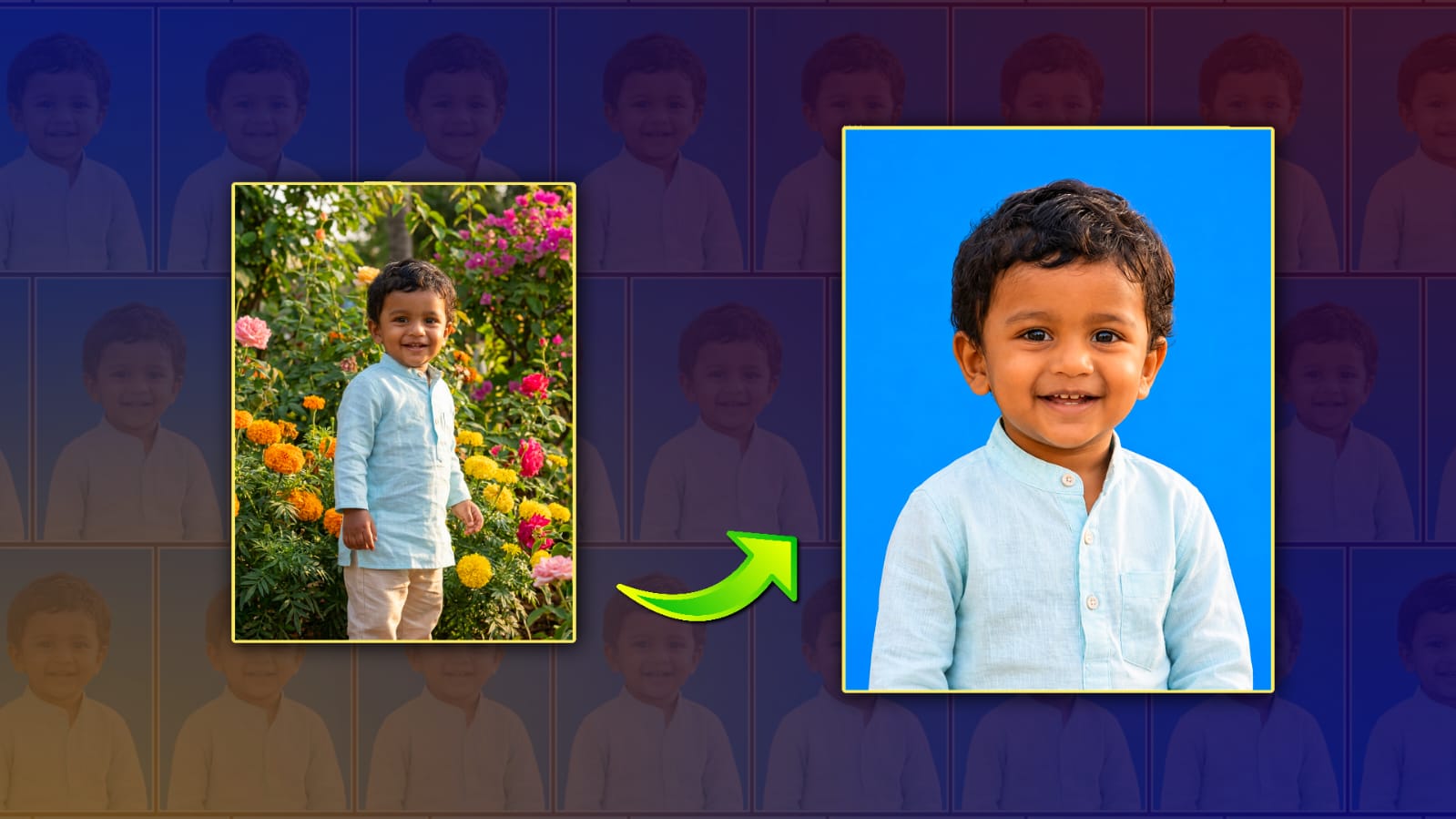
If you have ever needed a passport-size photo for an online application, government document, visa form, or job portal, you know how frustrating the process can be. Most people still think they need to visit a photo studio or use complicated editing software to create a professional passport photo. The good news is that artificial intelligence has made this process much easier. With Google Gemini, you can transform a simple selfie into a clean, high-quality HD passport photo in just a few minutes. Even if you have no photo editing experience, Gemini can help you improve your image and prepare it for further formatting.
The first step is taking the right selfie. Although Gemini can enhance an image, it works best when the original photo is clear. Stand in front of a plain wall if possible, preferably white or light-colored. Make sure the room has plenty of natural light or use a bright light source facing your face. Avoid taking selfies in dark rooms or with strong shadows. Hold your phone at eye level and keep your face centred in the frame. Look directly at the camera with a neutral facial expression, keeping both eyes open. Avoid wearing sunglasses, hats, or anything that hides your face unless it is required for religious or medical reasons.
After taking your selfie, open Google Gemini and upload the image. Instead of asking Gemini to simply “improve the photo,” give it a detailed prompt. AI performs much better when instructions are specific. For example, you can ask Gemini to enhance the image quality, sharpen facial details, improve lighting, reduce noise, maintain natural skin texture, remove unnecessary background distractions, and prepare the image for passport use while keeping your appearance realistic. The more clearly you describe your expectations, the better the results will usually be.
One of Gemini’s biggest advantages is its ability to improve photo quality without making the picture look fake. Many editing apps apply heavy filters that smooth the skin too much or change facial features. These effects may make the image unsuitable for official documents. Gemini focuses on improving clarity while preserving your natural appearance. This is especially important because passport authorities require photographs that accurately represent how you look in real life.
Lighting correction is another area where Gemini performs well. Many selfies suffer from uneven lighting, shadows under the eyes, or dull colours. Gemini can balance brightness, improve contrast, and make skin tones appear more natural. A well-lit passport photo looks cleaner, more professional, and has a much higher chance of meeting official requirements.
Background improvement is another useful feature. Passport photos generally require a plain white or light-colored background. If your original selfie was taken against a cluttered wall or inside your room, Gemini can often help simplify or replace the background with a cleaner one. However, always check the final result carefully. Some countries have strict passport photo regulations, so you should ensure the background is completely plain without unusual artefacts or editing mistakes.
Image sharpness is equally important. Blurry selfies often get rejected during document verification. Gemini can enhance facial details, improve edge sharpness, and reduce digital noise while maintaining a natural appearance. The result is an HD-quality image that looks much clearer than the original phone photo.
Although Gemini can greatly improve your image, it does not automatically crop every photo according to passport dimensions. After enhancing the image, you may need to use a passport photo tool or editor to crop it to the required size. Different countries have different passport photo specifications. Some require a 35×45 mm image, while others have different dimensions and head positioning rules. Before submitting your passport photo, always verify the official requirements of the country or organisation requesting it.
Another important point is maintaining a neutral appearance. AI can enhance lighting and quality, but it should never dramatically change your face. Avoid asking Gemini to make your face slimmer, remove permanent facial features, or apply beauty filters. Passport photos are meant for identification, so accuracy is much more important than cosmetic enhancement.
Many users also appreciate Gemini because it can improve older smartphone images. If you only have a selfie taken a few years ago with a lower-quality camera, Gemini may be able to increase clarity, reduce image noise, and make the picture appear more modern without changing your identity. While results depend on the original image quality, AI enhancement often produces noticeably better photographs.
Privacy is another reason why many people prefer using AI instead of sending photos to unknown editing services. Since your passport photo contains sensitive personal information, always review how your chosen AI service handles uploaded images. Avoid sharing passport photos publicly or uploading them to untrusted websites.
To achieve the best results, you may need to experiment with different prompts. If the first enhancement is not perfect, adjust your instructions and try again. You can ask Gemini to increase sharpness slightly, improve background cleanliness, balance exposure, or maintain more natural skin texture. Small prompt adjustments often produce significantly better results than using the same generic request every time.
One useful prompt could be: “Enhance this selfie into a realistic HD passport photo. Improve sharpness, correct lighting, remove image noise, create a plain white background, preserve natural facial features, maintain accurate skin tones, and ensure the image looks professional without beauty filters or unrealistic edits.” This type of detailed instruction gives Gemini a much better understanding of the desired outcome.
After completing the enhancement, zoom in and inspect the image carefully. Make sure both eyes are clearly visible, the face is centred, lighting is even, and no editing artefacts appear around the hair or shoulders. Check that the background looks smooth and consistent. If something seems unnatural, make minor adjustments before using the image for official purposes.
Using Gemini saves both time and money. Instead of visiting a photo studio, waiting in line, and paying for multiple printed copies, you can create a high-quality passport photo from home with only your smartphone. This is especially convenient for students, job seekers, travellers, and anyone who frequently submits online applications requiring passport-style photographs.
Artificial intelligence has made professional photo enhancement more accessible than ever before. With proper lighting, a well-taken selfie, and clear instructions, Gemini can transform an ordinary smartphone photo into a sharp, clean, and professional-looking HD passport image. While you should always confirm that the final photo meets your country’s official passport requirements, Gemini provides an easy and efficient starting point for creating high-quality passport photos from the comfort of your home. As AI technology continues to improve, creating professional document photos will become even faster, simpler, and more accurate for everyone.
Image Prompt
Use the uploaded photo as the only reference. Preserve the person’s identity exactly as in the original image. Keep the face 100% identical without changing facial features, skin tone, hairstyle, hair color, eyebrows, eyes, nose, lips, ears, beard, mustache, expression, age, gender, or overall face structure. Preserve the original outfit exactly as it appears, including the dress color, design, pattern, texture, collar, sleeves, and accessories. Do not replace or modify the clothing. Keep the person looking straight at the camera with a natural neutral expression. If the original photo is slightly angled, gently align the head to a natural straight passport pose without changing the facial identity. Create a professional passport-size studio portrait with proper head-and-shoulders framing, centered composition, and a clean solid light blue passport background. Use soft professional studio lighting, improve sharpness, remove noise, correct exposure, enhance details, and upscale to ultra-HD 8K quality. Maintain realistic skin texture and natural colors. This should look like a genuine DSLR studio passport photo. Only improve image quality and replace the background. No face swap, no beautification, no face reshaping, no hairstyle change, no expression change, no skin tone change, no clothing change, no accessories change, and no artistic effects. Face identity, original clothing, and natural appearance are the highest priority.