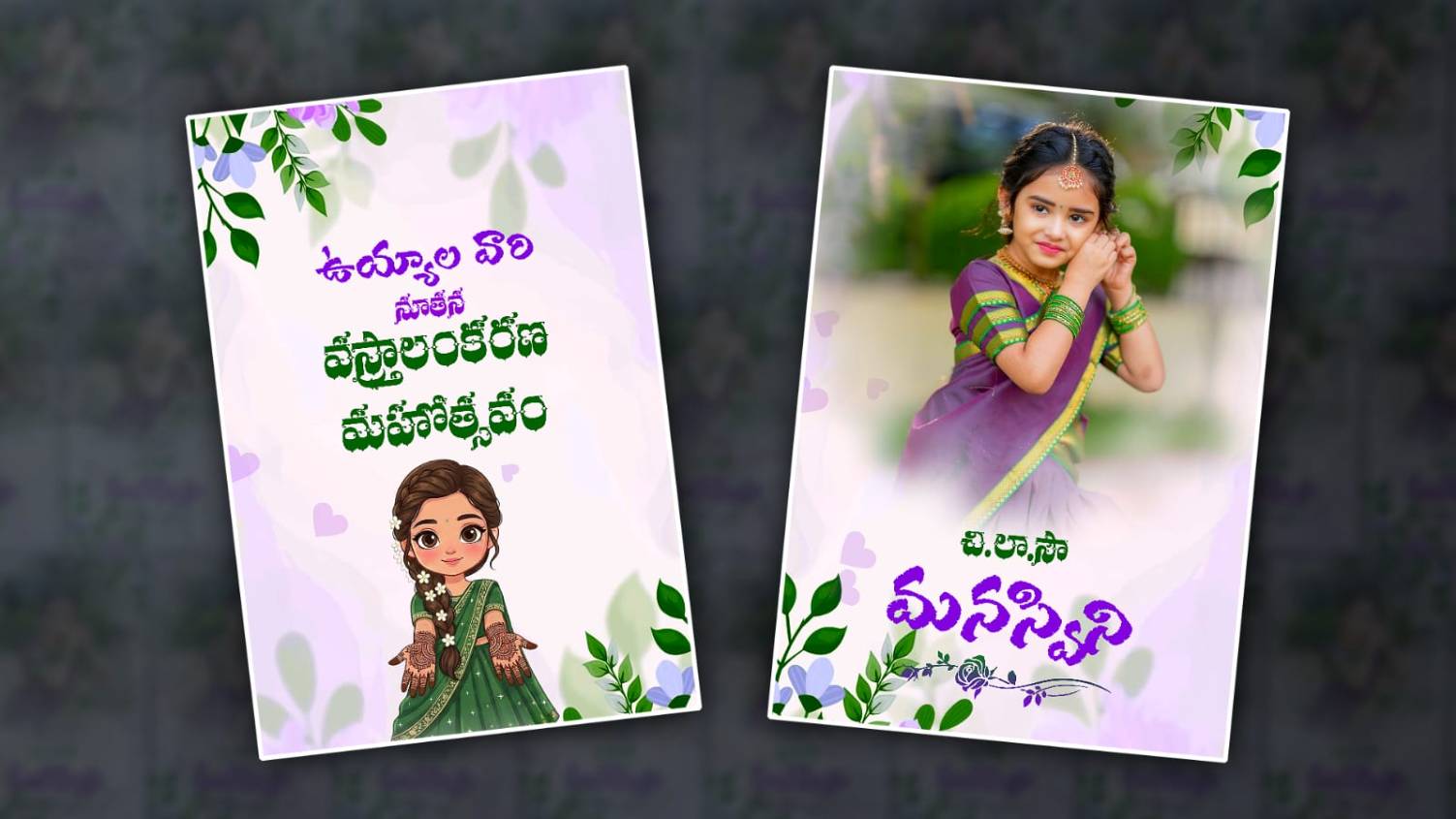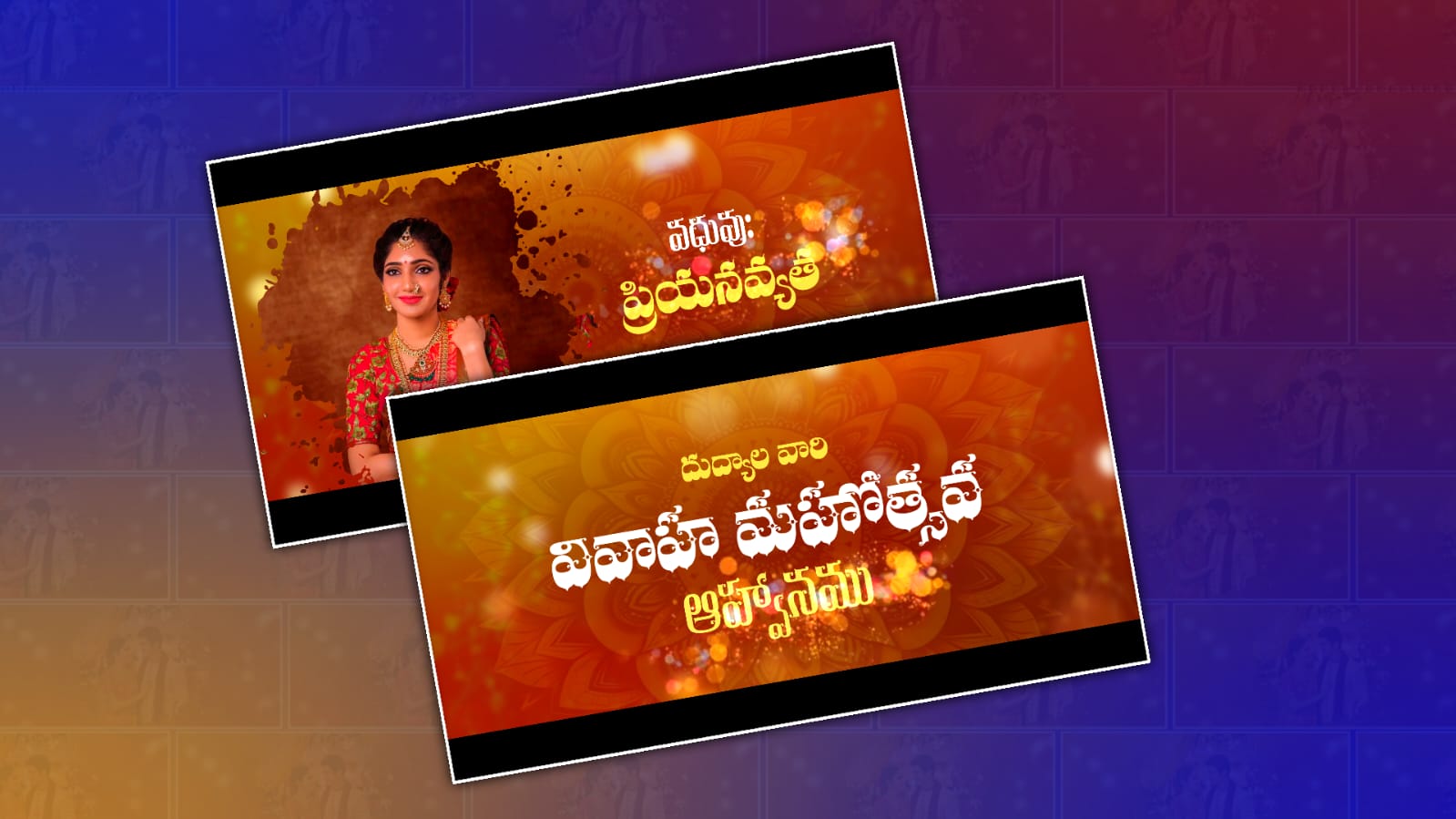
Creating a wedding invitation is no longer limited to printed cards. Today, many families prefer elegant digital invitation videos because they are easy to share through WhatsApp, Instagram, Facebook, and email. A well-designed Telugu wedding invitation video adds a personal touch while giving guests all the important event details in an attractive format.
If you’re wondering how to edit a professional Telugu wedding invitation tutorial in Alight Motion step by step, you’ve come to the right place. This guide covers everything from project setup and typography to animations, effects, music, and export settings. Whether you’re editing for your own family or creating invitation videos for clients, these techniques will help you produce a clean, premium-looking result.
Table of Contents
- Why Choose Alight Motion for Wedding Invitations?
- Things to Prepare Before You Start
- Step 1: Create a New Project
- Step 2: Choose the Perfect Background
- Step 3: Add Telugu Wedding Text
- Step 4: Animate the Invitation
- Step 5: Add Decorative Elements
- Step 6: Insert Background Music
- Step 7: Colour Correction and Finishing Touches
- Step 8: Export the Final Video
- Comparison Table
- Practical Tips
- Common Mistakes
- Frequently Asked Questions
- Conclusion
Why Choose Alight Motion for Wedding Invitations?
Alight Motion is one of the most popular mobile editing apps because it combines professional animation tools with an easy-to-use interface. You can create elegant invitation videos without needing a desktop editing program.
Some useful features include:
- Keyframe animation
- Motion blur
- Multiple editing layers
- Custom fonts
- Shape layers
- Professional transitions
- High-quality video export
These features make it suitable for designing modern Telugu wedding invitations with smooth animations and premium visual effects.
Things to Prepare Before You Start
Before opening Alight Motion, organise all the materials you need.
Prepare the following:
- Bride and groom names
- Wedding date
- Time and venue
- Telugu invitation text
- Couple photos (optional)
- Floral PNG elements
- Traditional decorative graphics
- Background music
- Family names
- Contact details or RSVP information
Keeping everything ready saves time during editing.
Step 1: Create a New Project
Start by creating a new project using settings that provide excellent video quality.
Recommended Project Settings
| Setting | Recommended Value |
|---|---|
| Resolution | 1080 × 1920 |
| Frame Rate | 30 FPS |
| Aspect Ratio | 9:16 |
| Background | White, Gold, or Dark Theme |
| Export Format | MP4 |
These settings are ideal for WhatsApp Status, Instagram Reels, Facebook Stories, and YouTube Shorts.
Step 2: Choose the Perfect Background
The background determines the overall mood of the invitation.
Popular options include:
- Traditional temple backgrounds
- Floral arrangements
- Golden abstract textures
- Mandala artwork
- Soft glowing lights
- Marble textures
- Luxury wedding themes
Choose backgrounds that complement the text instead of making it difficult to read.
Step 3: Add Telugu Wedding Text
Typography is one of the most important design elements.
Begin with the wedding title, followed by the names of the bride and groom, and then include the event details.
Suggested order:
- Wedding title
- Bride and groom names
- Parents’ names
- Wedding date
- Time
- Venue
- Invitation message
- Blessings or closing message
Use elegant Telugu fonts for headings and simple fonts for detailed information. Maintain consistent spacing throughout the design.
Step 4: Animate the Invitation
Smooth animations make the invitation look polished and engaging.
Recommended Animations
Fade In
Perfect for introducing titles and event details.
Scale Animation
Adds elegance when displaying the couple’s names.
Slide Animation
Works well for date, venue, and timing information.
Rotation Animation
Use sparingly for decorative elements.
Motion Blur
Apply motion blur to make transitions appear smoother and more professional.
Avoid adding excessive animations to every layer. Simple movement often creates a more premium appearance.
Step 5: Add Decorative Elements
Traditional decorations help create a festive atmosphere.
Popular design elements include:
- Floral borders
- Gold frames
- Temple bells
- Mango leaves
- Rangoli designs
- Diyas
- Sparkle particles
- Decorative dividers
Position these graphics around the edges so they enhance the layout without covering important text.
Step 6: Insert Background Music
Music plays a significant role in setting the tone of the invitation.
Suitable choices include:
- Soft flute instrumentals
- Veena music
- Classical Indian instrumental tracks
- Light devotional background music
- Cinematic orchestral instrumentals
Keep the background music at a balanced volume so viewers can comfortably focus on the invitation details.
Step 7: Colour Correction and Finishing Touches
After completing the animation, review the overall design carefully.
Check the following:
- Text alignment
- Font consistency
- Color balance
- Animation timing
- Background brightness
- Spelling accuracy
- Layer spacing
Small adjustments at this stage greatly improve the final result.
Step 8: Export the Final Video
When everything looks correct, export the project using high-quality settings.
Recommended export settings:
- Resolution: 1080p
- Frame Rate: 30 FPS
- Bitrate: High
- Format: MP4
Watch the exported video once before sharing to ensure every scene appears correctly.
Comparison Table
| Feature | Basic Invitation | Professional Invitation |
|---|---|---|
| Typography | Simple | Elegant Telugu Fonts |
| Animation | Basic Fade | Smooth Keyframe Animation |
| Decorations | Minimal | Traditional Premium Design |
| Music | Optional | Carefully Selected Instrumental |
| Overall Quality | Standard | Professional Finish |
Practical Tips
Follow these best practices for better results:
- Keep the total video between 30 and 60 seconds.
- Use high-resolution PNG decorations.
- Stick to two or three complementary colours.
- Leave enough white space around the text.
- Preview every animation before exporting.
- Save project backups regularly.
- Test the video on different mobile devices.
- Use copyright-free music whenever possible.
Common Mistakes
Many beginners encounter avoidable issues while editing.
Try to avoid:
- Using too many font styles
- Overloading the video with effects
- Choosing low-contrast text colours
- Displaying text too quickly
- Using low-resolution images
- Misaligned text
- Uneven animation timing
- Exporting at low quality
A clean and balanced design usually looks more professional than one filled with unnecessary effects.
Frequently Asked Questions
1. Is Alight Motion suitable for professional Telugu wedding invitation videos?
Yes. Alight Motion provides advanced animation, typography, and visual effect tools that can produce high-quality invitation videos when used correctly.
2. What is the best resolution for wedding invitation videos?
A resolution of 1080 × 1920 pixels is recommended because it is optimised for most smartphones and social media platforms.
3. Can I use my own Telugu fonts?
Yes. Alight Motion supports custom fonts, allowing you to use Telugu fonts that match the style of your invitation.
4. How long should a wedding invitation video be?
A duration of 30–60 seconds is generally enough to present all important details without making the video feel too long.
5. Which export format is best?
Export the video as MP4 in 1080p with a high bitrate to maintain good visual quality while keeping the file size manageable.
Conclusion
Learning how to edit a professional Telugu wedding invitation tutorial in Alight Motion step by step is mainly about combining thoughtful design with smooth animation. Start by organising your content, choose a clean background, use elegant Telugu fonts, and apply subtle animations that guide viewers naturally through the invitation. Traditional decorative elements and soft instrumental music can enhance the overall presentation without overwhelming the design.
Before exporting, carefully review every screen for spelling, timing, and alignment. A polished invitation doesn’t rely on excessive effects—it focuses on clarity, consistency, and visual balance. By following the workflow outlined in this guide, you can create high-quality Telugu wedding invitation videos that are easy to share, visually appealing, and suitable for both personal celebrations and professional client projects.