If you want to turn a Hanuman photo into a beautiful animated video using Google Gemini, you can actually do it without learning complicated video editing software. Gemini’s video generation feature can take an image as a reference and create a short moving video from it. The process is quite simple once you understand how to write the right prompt and choose a good image. Google’s current Gemini video tools are powered by Veo, and they can generate videos from uploaded images while adding movement, atmosphere, and even sound.
The first thing you need is a good Hanuman photo. You can use a devotional artwork, digital illustration, AI-generated image, or another image that you have permission to use. Try to choose a clear, high-quality picture where Hanuman is visible properly. Images with a clear subject usually give better results because Gemini can understand the character, clothing, background, and important visual details more easily. Google also recommends uploading only photos that you have the right to use.
Once you have your image ready, open Gemini on your phone or computer. On the web version, go to Gemini and open the video creation option from the sidebar. On supported versions of the mobile app, you can also select the video option from the menu. Google’s current instructions allow you to add an image and describe the video you want to create. You can upload up to five images in the current Gemini video workflow, although for a simple Hanuman animation, one strong image is usually enough.
Now comes the most important part: the prompt. A lot of people simply type something like “make this photo animated,” but that often produces a very basic result. Instead, describe exactly how you want Hanuman to move, what should happen in the background, how the camera should move, and what kind of atmosphere you want.
For example, you could upload your Hanuman image and write: “Animate this Hanuman devotional image into a cinematic spiritual video. Keep Hanuman’s face, clothing, ornaments, colours, and overall appearance consistent with the original image. Hanuman slowly opens his eyes and gently moves his head while a soft divine golden light appears around him. His clothes and hair move naturally in a gentle wind. Add subtle glowing particles in the air. The camera slowly moves closer toward Hanuman, creating a peaceful and powerful devotional atmosphere. Keep the animation realistic, graceful, respectful, and cinematic.”
This type of prompt gives Gemini much more information to work with. You are not only asking for movement; you are explaining the entire scene. The result can feel more like a short devotional video rather than a photograph with a random zoom effect.
You can also create a more powerful version if you want Hanuman to look heroic. For example, you could ask Gemini to animate Hanuman standing in front of a glowing temple, with clouds moving slowly in the background and sunlight coming through the sky. You could describe a gentle movement of his gada, flowing cloth, glowing aura, and a slow cinematic camera movement. If you want the video to feel peaceful instead, use words such as “calm,” “spiritual,” “serene,” “soft golden light,” “gentle movement,” and “devotional atmosphere.”
One useful trick is to avoid asking for too much movement at once. If you tell Gemini that Hanuman should fly, fight, wave his gada, move his arms, change his expression, walk forward, and have the entire background transform at the same time, the generated video may become inconsistent. The character’s face or hands can change unexpectedly. It is usually better to concentrate on two or three important movements.
For example, you could simply ask for Hanuman to slowly raise his hand in a blessing gesture while his clothes move in the wind and the camera gently moves forward. This gives the model a clear task. If the first result is not what you wanted, you can try again with a slightly different prompt. Gemini also supports continuing to refine generated videos with additional prompts, so you can ask for changes instead of starting completely from scratch in some workflows.
If you are creating the video for Instagram Reels, YouTube Shorts, WhatsApp Status, or another mobile platform, pay attention to the aspect ratio. Google has added native vertical video support to newer Veo capabilities, which is useful for short-form mobile videos. You can mention “vertical 9:16 devotional video” in your prompt if that option is available in your Gemini interface.
Sound can make the animation feel much more interesting. Gemini’s photo-to-video capability can generate sound along with the video, depending on the feature and access available to your account. You could ask for soft temple bells, gentle devotional ambience, wind sounds, or a peaceful spiritual atmosphere. For example: “Add subtle temple bells and peaceful ambient devotional sounds in the background.” If you want a completely silent video, simply tell Gemini not to add music or sound.
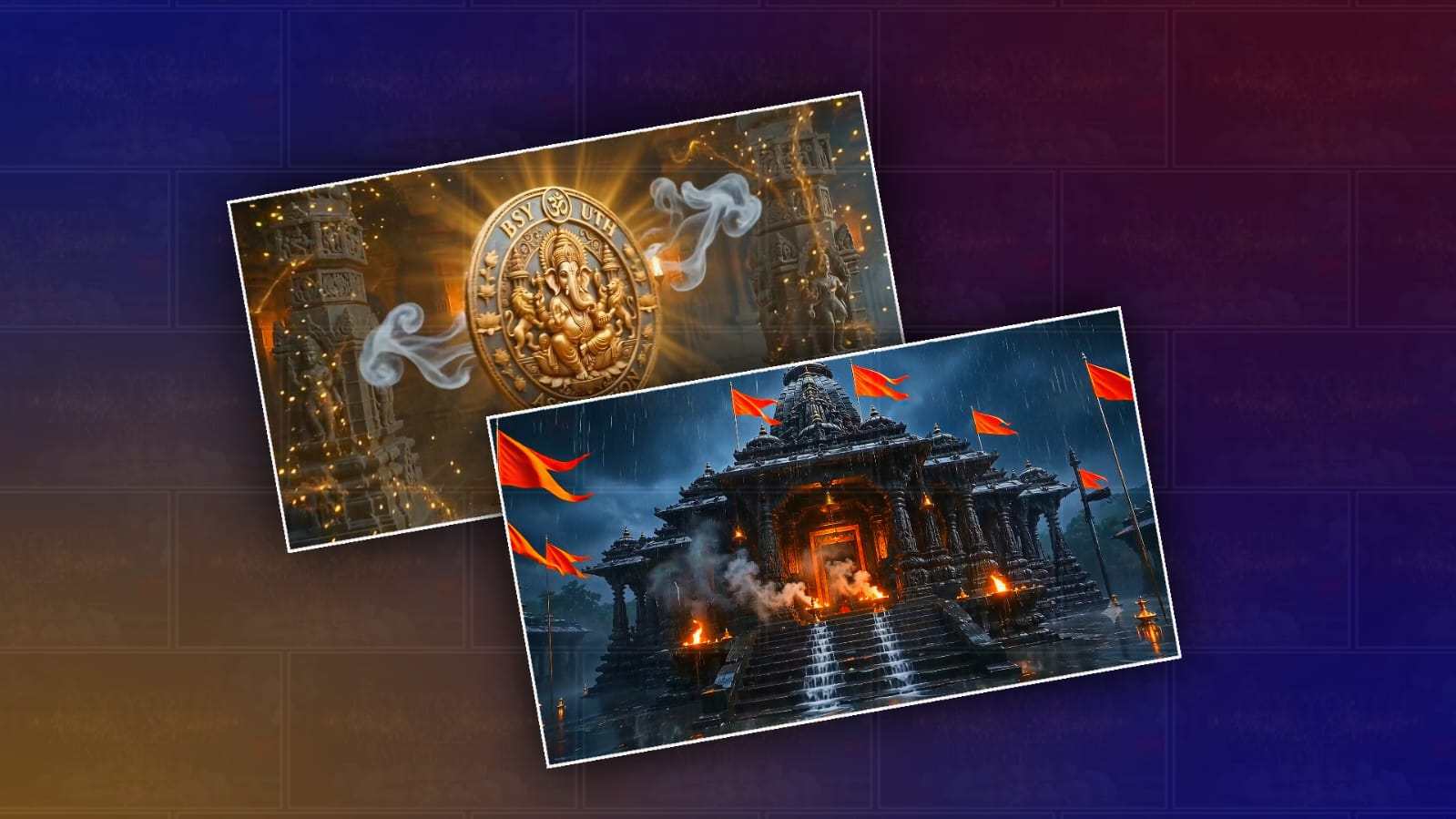
You can also create different styles from the same Hanuman photo. For a realistic devotional style, ask for cinematic lighting and natural movement. For a fantasy style, ask for a glowing celestial background, clouds, divine rays, and magical particles. For a temple-style video, ask for oil lamps, incense smoke, flowers, and warm golden lighting. For a powerful scene, you can describe a stormy sky, dramatic clouds, divine light, and a slow camera movement toward Hanuman.
Another important point is keeping the original character consistent. When you upload a religious artwork, you probably want Hanuman to continue looking like the original image rather than becoming a completely different character. Tell Gemini explicitly to preserve the original face, body proportions, ornaments, clothing, colours, and artistic style. Newer Veo capabilities are specifically designed to improve consistency of characters, backgrounds, and objects when using reference images.
If Gemini changes something you do not like, don’t immediately give up. Try simplifying your prompt. Instead of adding ten different instructions, tell it exactly what needs to remain unchanged and what single movement you want. For example: “Keep the original Hanuman artwork unchanged. Only animate the flowing cloth, subtle movement of the eyes, glowing aura, and slow camera push-in. Do not change the face, ornaments, body, or background.”
The generated video may take a few minutes, depending on the service and current availability. Once it is ready, you can preview it and download or share it. Google says generated videos include a visible watermark indicating that they are AI-generated, along with an invisible SynthID watermark.
If your main goal is to make a Hanuman devotional video that looks good on social media, I would recommend starting with a high-quality portrait image, using a vertical format when available, keeping the movement slow and respectful, and adding a simple cinematic camera movement. A prompt such as “slowly bring this Hanuman image to life” is a good starting point, but a detailed prompt describing the movement, lighting, camera, background, and sound will usually give you much more control.
The nice thing about this method is that you don’t need to manually animate every part of the picture. You provide the image and explain the scene you have in mind, and Gemini handles much of the animation process. You can experiment with different prompts until you get the devotional style you want. With a little practice, even a single Hanuman photo can be turned into a short cinematic animation suitable for a status video, Reel, Short, devotional post, or personal project.
BGM Download
VIDEO PROMPT
Create a 10-second ultra-realistic cinematic devotional transformation video. Use the uploaded person photo as the EXACT starting character reference.
Preserve the person's exact face, facial identity, hairstyle, body proportions and clothing at the beginning. Do not replace the person with another character.

IMPORTANT:
The entire animation must happen continuously. Do NOT use sudden cuts. Do NOT instantly transform the person. The transformation must visibly happen step-by-step.

TIMELINE:

0–2 SECONDS:
Show the person standing naturally in the original environment. Camera starts with a cinematic medium-wide shot. The person remains completely normal and natural. Clouds slowly move in the sky. Subtle wind moves the person's hair and clothes.

2–4 SECONDS:
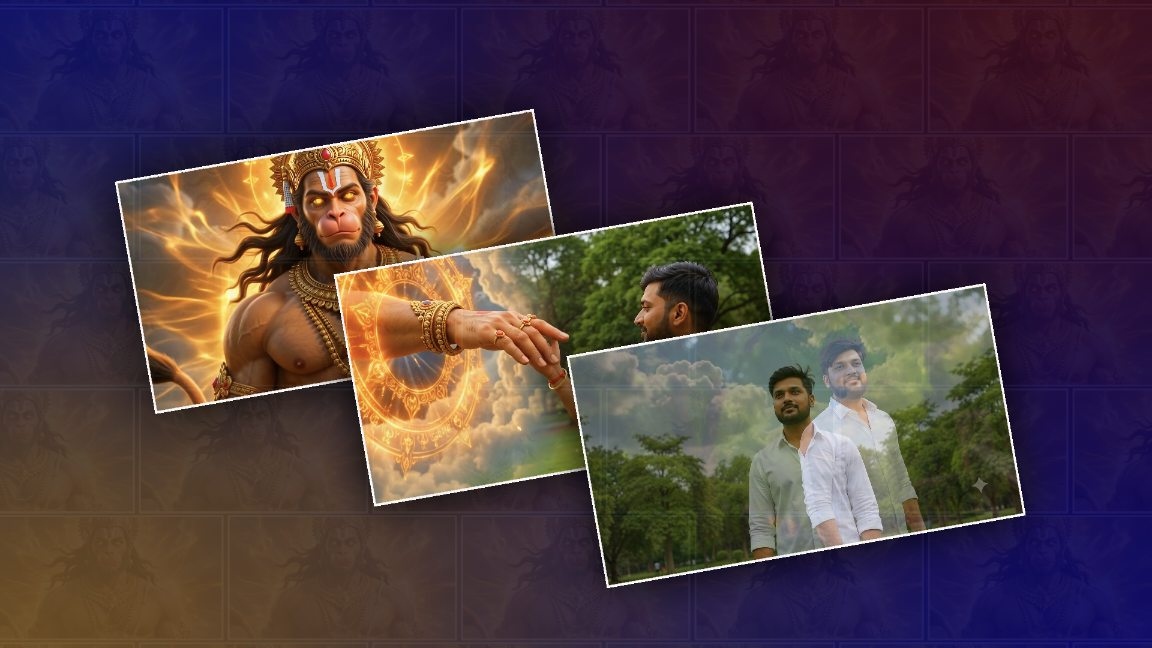
The sky above the person suddenly becomes brighter. A huge glowing orange-golden circular divine portal appears in the clouds. The portal slowly rotates with sacred glowing patterns. Golden divine particles begin falling around the person. Camera slowly pushes toward the person.

4–6 SECONDS:
From the center of the glowing portal, a powerful divine hand slowly emerges. The hand is wearing traditional golden bracelets and sacred ornaments. The hand moves downward toward the person's raised hand. Camera changes to a side cinematic angle showing BOTH hands clearly. The person slowly raises his hand toward the divine hand.

6–7 SECONDS:
The two fingertips move closer and finally TOUCH. At the exact moment of contact, create a bright golden-orange divine spark. A powerful wave of golden energy enters the person's hand. Camera performs a quick cinematic push-in toward the touching fingertips.

7–8.5 SECONDS:
The golden energy rapidly travels from the hand through the arm, shoulder and chest. The person's human body begins transforming progressively into a divine Hanuman form. Show a close-up camera angle of the arm and chest transformation. The transformation must visibly spread through the body. Do not make it an instant transformation.

8.5–10 SECONDS:
The transformation completes. Reveal the fully transformed Lord Hanuman in a powerful low-angle cinematic shot. He has a powerful muscular divine body, sacred tilak, glowing golden eyes, long flowing hair, traditional golden ornaments, red-orange dhoti and a long monkey tail. A strong golden-orange divine aura surrounds him. Hair, cloth and tail move naturally in the wind. End on a powerful close-up of Hanuman's face.

Ultra-realistic Indian devotional mythology aesthetic, cinematic VFX, realistic skin and fur, realistic jewelry, volumetric clouds, golden-orange divine lighting, high-end blockbuster cinematography.

No text. No subtitles. No extra people. No duplicate character. No sudden scene change.

Duration: EXACTLY 10 seconds.