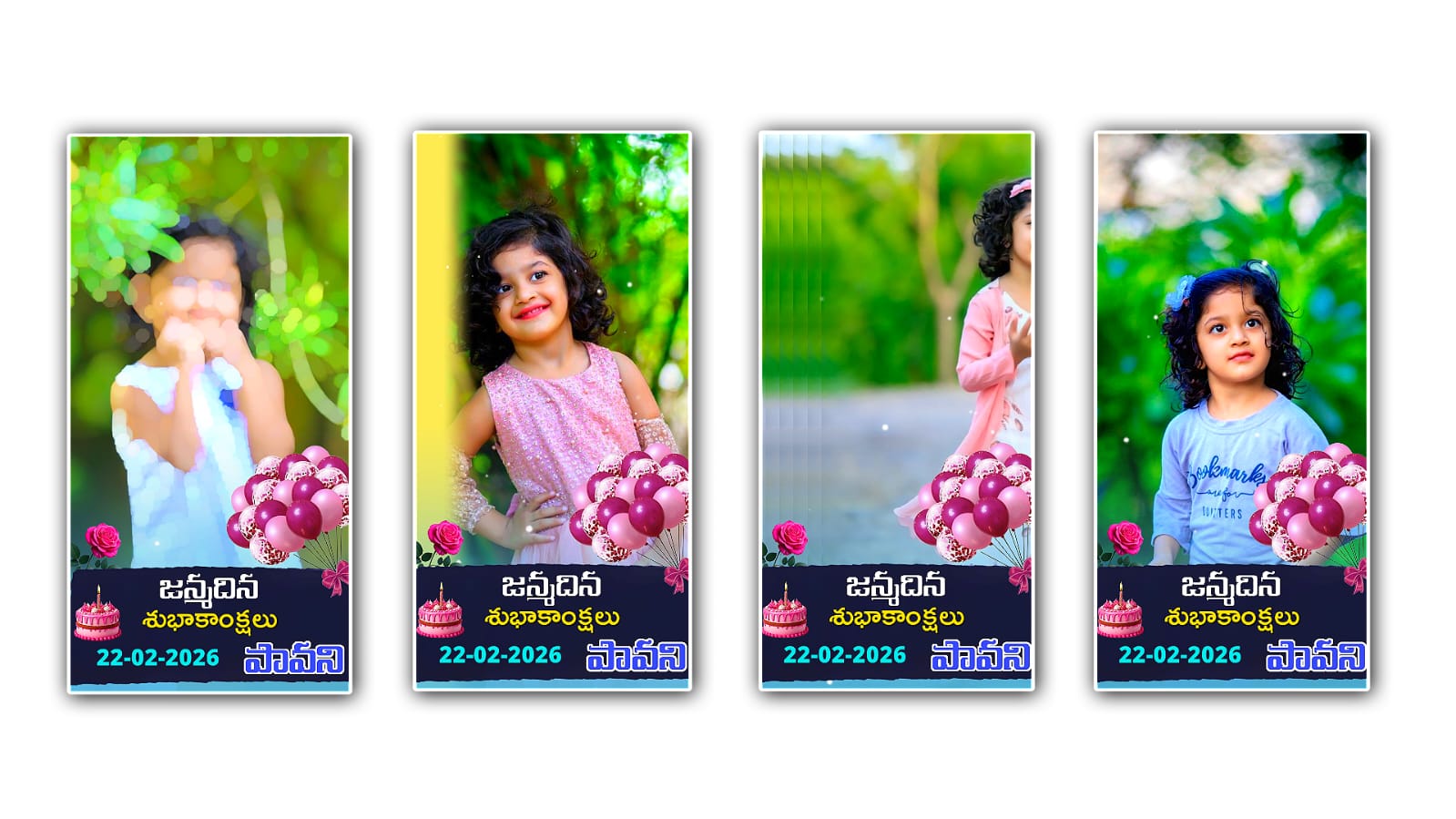
Kids’ birthdays are not just parties anymore—they’re memories in the making. From colourful balloons to cute smiles and fun moments, every second deserves to be savedspeciallyy. That’s where birthday video editing comes in. If you’re looking to create eye-catching, fun, and emotional kids’ birthday videos, Alight Motion is one of the best apps you can use today.
In this article, we’ll explore why Alight Motion is perfect forkids’s birthday video editing, how to use it effectively, the best styles, effects, and ideas, and where to find ready-made presets, fonts, and music to make your video truly magical.
WhKids’ds Birthday Videos Are So Special
A child’s birthday happens only once a year, but the memories last forever. Photos are great, but videos bring moments to life—the laughter, the excitement, and the joy.
Benefits of Birthday Video Editing
Preserves precious childhood memories
Makes birthdays more emotional and fun
Perfect for sharing on WhatsApp, Instagram, and YouTube
A creative gift that kids and parents both love
With the right editing, even simple clips can turn into a professional-looking birthday movie.
Why Choose Alight Motion for Kids’ Birthday Video Editing?
Alight Motion is one of the most powerful mobile video editing apps, especially for motion graphics and animations. It’s beginner-friendly yet advanced enough for professional results.
Key Features of Alight Motion
Multiple layers for video, images, text, and audio
Smooth keyframe animations
Ready-made effects and transitions
Vector and bitmap support
High-quality export options
👉 Download Alight Motion here:
https://alightmotion.com
Best Birthday Video Styles for Kids in Alight Motion
Choosing the right style is important when editing kids’ birthday videos. Bricolourslors, playful animations, and fun music work best.
1. Cartoon Theme Birthday Video
Cartoon-style videos are perfect for kids. You can add animated stickers, doodles, and bouncing text to match the child’s energy.
Best for:
Toddlers
Kids aged 3–8
Cartoon loverscolourfulorful backgrounds, stars, clouds, and balloons for a joyful vibe.
2. Photo Slideshow with Cute Transitions
If you have lots of photos from different years, a slideshow is a great option. Alight Motion lets you add smooth transitions and zoom effects to make photos feel alive.
Tips:
Use soft zoom-in and zoom-out effects
Add a cute birthday song
Place text like “Happy 5th Birthday” or “Growing So Fast”
3. Name Animation Birthday Intro
A stylish animated name intro makes the video feel professional. You can animate the child’s name with bouncing or glowing effects.
Example text ideas:
“Happy Birthday Aarav 🎉”
“Our Little Princess Turns 6 👑”
4. Story-Style Birthday Video
This style tells a small story—from birth to the present. Start with baby photos and slowly move to recent moments.
Story flow idea:
Born day photo
First smile
First step
School moments
Birthday celebration
This type of video often becomes very emotional for parents.
Best Effects for Kids’ Birthday Video Editing in Alight Motion
Effects can make or break your video. For kids, always keep things soft, colourful, and fun.
Recommended Effects
Glow
Motion Blur (light use)
Scale Bounce
Fade In / Fade Out
Confetti overlays
Avoid dark or aggressive effects—kids’ videos should feel happy and playful.
How to Edit Kids Birthday Videos in Alight Motion (Step-by-Step)
Step 1: Create a New Project
Open Alight Motion
Tap the + icon
Choose video resolution (1080p recommended)
Set frame rate to 30fps
Step 2: Import Photos and Videos
Add birthday photos and clips
Arrange them in order
Trim unnecessary parts
Step 3: Add Text and Name Animations
Use fun fonts
Animate text using keyframes
Keep text short and readable
Step 4: Apply Effects and Transitions
Add smooth transitions between clips
Use minimal effects for a clean look
Step 5: Add Music
Music is the heart of a birthday video. Choose something cheerful and kid-friendly.
🎵 Free music sources:
Step 6: Export the Video
Export in 1080p
Choose high quality
Save and share
Best Alight Motion Presets for Kids’ Birthday Videos
Presets save time and give professional results. Many creators share birthday presets for free.
Where to Find Birthday Presets
YouTube:
https://www.youtube.comTelegram Channels (search “Alight Motion Birthday Presets”)
Instagram Reels Editors
When using presets, replace photos, text, and music with your own content.
Best Fonts forKids’s Birthday Video Editing
Fonts play a huge role in kids’ videos. Choose fonts that are fun and readable.
Popular Font Styles
Bubble fonts
Handwritten fonts
Rounded playful fonts
🔤 Free font websites:
Common Mistakes to Avoid
Even good apps can’t fix poor editing choices. Avoid these mistakes:
Using too many effects
Adding loud or scary music
Overloading text on screen
Using Darcolours
Long video duration (keep it 1–3 minutes)
Simple, clean, and joyful is always best.
SEO Tips fKids’ids Birthday Video Editing Blogs
If you want your blog to rank better on Google, use these keywords naturally:
Kids birthday video editing
Alight Motion birthday video
Birthday video editing for kids
Kids birthday slideshow
Birthday video preset Alight Motion
Add images, internal links, and fast-loading pages for better results.
Final Thoughts
Creating a kid’s birthday video in Alight Motion is more than just editing—it’s about capturing emotions, smiles, and memories that last a lifetime. With the right effects, music, and creativity, you can turn simple photos into a beautiful birthday story.